For streamers, by streamers. StreamWizard exists so you can stop juggling five different tools and dashboards for chat commands, loyalty points, and alerts — build exactly the automation you want, your way, in one flexible system that responds faster than piecing separate tools together ever could. This page gets you from a fresh account to your first working automation in a few minutes.
¶ Step 1 — Start your trial
New accounts need a plan before anything works — you'll see a banner reading "Get started with a free 30-day trial, or subscribe to unlock all of our services." Click it (or open Subscription in the sidebar on the left) and start the Starter trial: no card required, 30 days, straight in. There's more to know about plans and pricing once you're actually using the product — see Account for that when you need it.
¶ Step 2 — Connect a platform
Open Connect Platforms in the sidebar on the left, and link the account(s) you want to automate. Most people start with Twitch, since that's what the rest of this page walks through — but StreamWizard isn't Twitch-only. Discord works on its own too: you can connect just a Discord server and build Flows entirely around it, with no Twitch account at all. And if you stream with OBS Studio, connect OBS Manager so Flows can react to your scene switches and control OBS for you. Whichever you pick, this step is the one thing everything else depends on — without a connected platform, there's nothing to react to and nothing to act on.

¶ Step 3 — Build your first Flow
Here's the whole idea of StreamWizard in one sentence: when something happens, StreamWizard does something back. That "something happens" is an Event, and the "does something back" is an Action — together they make a Flow. Let's build the classic first one: say hello to new followers, automatically. (Connected Discord instead? Swap Twitch Follow for Discord Member Joined, and Send Chat Message for Send Channel Message — same five steps.)
- Go to Automations → Flows, and create a folder if you don't have one yet (e.g. "Chat Engagement").
- Click Add flow, name it something like "Follower Welcome," pick Platform Twitch and Event type Follow. The Flow Builder opens.
- In the bar along the bottom, open Actions (the lightning icon) and drag a Command onto the canvas. Set Platform to Twitch. For Executor, pick StreamWizardIO - Shared from the list (a bot account that's always available and included in every plan — no need to set up your own bot account just to try this; there's more to this once you get to Account). Set Type to Send Chat Message.
- From Data loaders (the first icon), drag a Create value node (Type: Text), type a message like "Thanks for the follow!", and wire its output into the Command's Message Content input.
- Hit Save, then Publish.
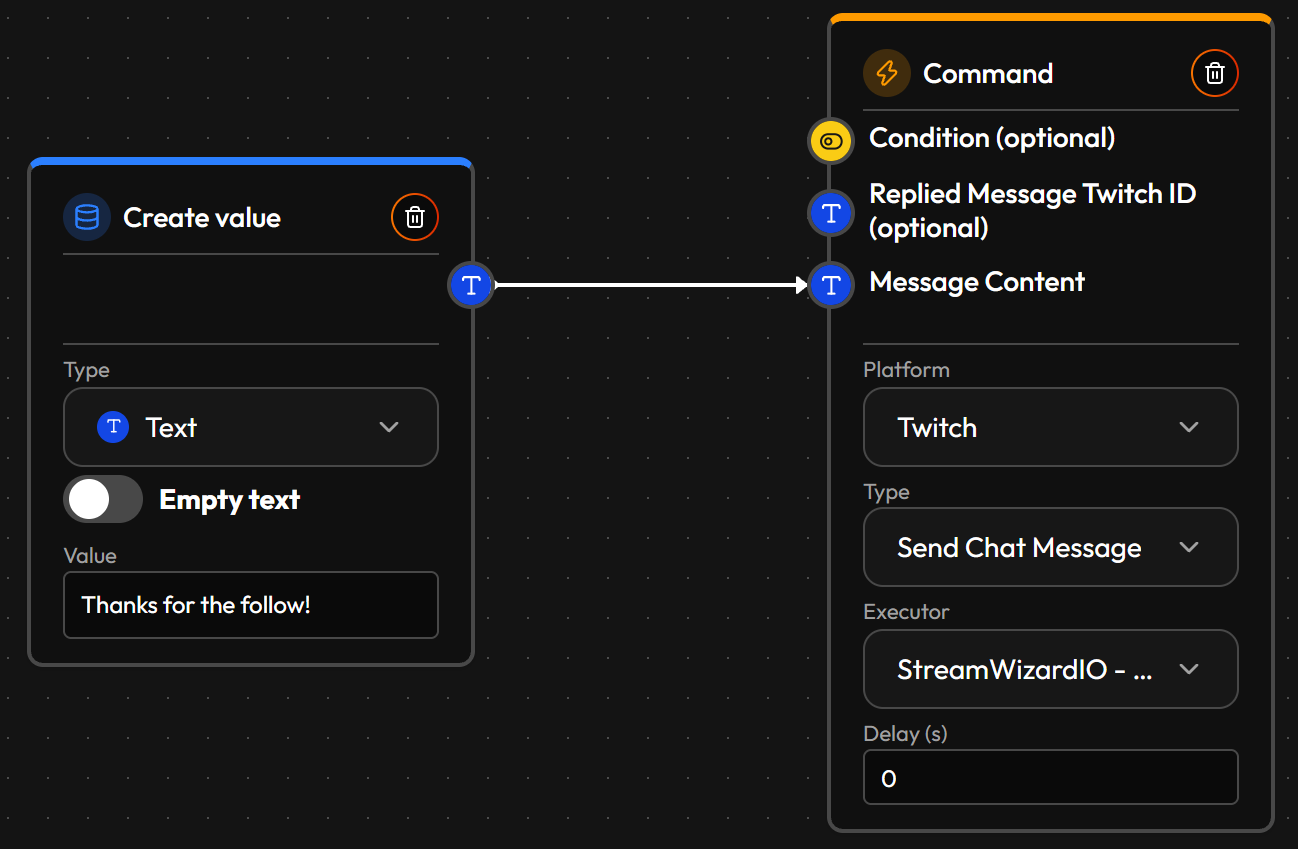
That's it — a real, live automation. From here, the entire rest of the Flow Builder is just more of the same idea: different Events to start from, more Nodes in between to add logic, and any Action at the end. The Flow Builder page walks through building Flows properly, and Flows covers folders, publishing and permissions, once you're ready to go deeper.
¶ Step 4 — See it work
Have someone follow your channel (or, while testing, trust that it's wired correctly — Twitch doesn't let you fake a follow) and watch your chat. Once you're comfortable with one Flow, building the next one is the same five steps with a different Event and Action.
¶ Where to go next
Once your first Flow works, the rest of StreamWizard is about what else you can wire together — and it tends to snowball into replacing tools you'd otherwise pay for separately:
| If you want to... | Go to |
|---|---|
| Understand Flows, organize them in folders, publish them, and see what permissions they need | Flows |
| Build a Flow: place nodes, connect them, and fix what the builder flags | Flow Builder |
| Trigger on-screen pop-ups, sounds, or text-to-speech | Alerts |
| Reward loyal viewers with your own points/currency | Collectables |
| Watch it all at a glance while you stream | Dashboard |
| Reuse a value or a chain of logic across Flows | Constants & Macros |
| Get inspiration for what to automate next | Flow ideas |
| See everything that can start a Flow | Events |
| See every node you can build with | Nodes |
| See everything StreamWizard can do or look up on Twitch, Discord and OBS | Commands |
| Manage your account, connected platforms, team access, or subscription | Account |
¶ Coming from another tool?
If you're currently running a stack of separate bots and dashboards, here's roughly where each piece lands in StreamWizard — and why it's usually worth folding in:
| What you're using now | What replaces it here | Why it's worth switching |
|---|---|---|
| A chat-command bot like Nightbot, Moobot, or Fossabot | Flows built on Twitch Chat Message events and Command actions | Your commands live in the same place as everything else — no separate bot, no separate login, and a command can do more than reply with text (it can check a condition, hit Discord too, grant a Collectable, all in one Flow). |
| A points/loyalty system like StreamElements Loyalty or Streamlabs Loyalty | Collectables | You define the rules yourself — how it's earned, how it's spent, whether it expires — instead of being stuck with one fixed points-per-minute system. |
| An alert box like Streamlabs, StreamElements, or SoundAlerts | Alerts, triggered by a Flow's Play alert action | Alerts aren't limited to donations and subs — they fire on anything a Flow can start from (a specific cheer amount, a channel point redemption, a raid, a timer), and since nothing passes through StreamWizard financially, there's no cut taken — unlike bit-funded alert extensions. |
| A stream-stats overlay or creator dashboard | Dashboard | Built entirely around your own Collectables and Flow data instead of generic platform stats — and you can save multiple layouts for different moments (live overlay, post-stream recap, phone glance-screen). |
| A Discord bot for welcome messages and custom commands, like MEE6 | Flows on Discord Member Joined or Message Sent events (with a "starts with" trigger for command words), ending in actions like Send Channel Message or Add Role to Member (see Events and Commands) | A welcome message or a "!rules" command is a small Flow, and it can sit next to your Twitch Flows, so one automation can also react to what happens on stream. |
| A Discord bot for join/leave announcements, auto roles and moderation, like Dyno | Flows on Member Joined, Member Left and Member Banned events with Send Channel Message or Add Role to Member, plus the moderation commands Kick Member, Ban Member and Timeout Member | You choose what triggers each action and what it does. Ready-made auto-moderation filters aren't part of StreamWizard: you build the rules you want out of events and conditions. |
| A Discord bot for reaction roles, logs and custom commands, like Carl-bot | Flows on Reaction Added / Reaction Removed with Add Role to Member / Remove Role from Member for reaction roles, and on events like Message Edited, Message Deleted or Member Banned ending in Send Channel Message to write a log | Each reaction role or log line is a Flow with exactly the conditions you choose, in the same place as the rest of your automations. |
None of this requires ripping everything else out on day one — most people migrate one piece at a time, starting with whichever piece would save them the most hassle first.