The Flow Builder is where a single Flow comes to life. A Flow is one "when this happens, do that" automation: an event starts it, a chain of small nodes checks and reshapes the information, and one or more actions do something real. You build it on a canvas by dragging nodes in and connecting them. No code needed. Events and nodes are explained right below, under The building blocks. To organize your Flows in folders and publish them, see Flows.
How to open it: on the Automations page, click the wrench icon on an unpublished Flow, or add a new Flow to a folder, which opens straight in the Flow Builder. A published Flow can't be opened directly: unpublish it or duplicate it first.
What this page covers. This page is about building a Flow: the building blocks, what is on the Flow Builder screen, how nodes connect, and how the builder tells you when something needs fixing. It does not cover managing Flows. Things like folders, Flow settings, duplicating, publishing and unpublishing, finding a Flow, and the permission check that runs when you publish live on the Flows page.
¶ The building blocks
Every Flow is made of three ingredients: one Event, a handful of Nodes, and usually one or more Actions at the end. The event is what starts the Flow (see Flows and the Events reference). Nodes and actions are what you place on the canvas:
Nodes are what a Flow is built out of. An event hands your Flow raw information — but raw information alone isn't very useful. You usually need to check it, reshape it, combine it with something else, or save it for later. That's what nodes do. Each node does one small job, and you connect them together, like links in a chain, to build whatever logic your Flow needs. No code required — every node is just a labeled box with a few fields to fill in. Every node fits into one of three categories:
- Data loaders bring information into your Flow — from the triggering event, from something you saved earlier, from a Constant, or by looking something up live.
- Operations check or transform information you already have — comparing text, doing math, working with dates, combining true/false answers. In the node list these are grouped into Text, Numeric, DateTime, and Logical operations.
- Actions are the nodes that actually reach out and do something real: sending a chat message, handing out points, playing an alert, adding a VIP. Without an action, a Flow can notice things, but nothing happens where a viewer can see it. Every action also has an optional Delay (s) field, if you want it to fire a bit later instead of right away.
You can think of a Flow like a small assembly line: an event kicks it into motion, information flows through a chain of nodes, and by the end, one or more actions make something real happen — all without you lifting a finger once it's built.
🔔 Event happens → 🧩 Nodes check it → ⚡ Action runs
¶ Seeing it all together
Here's a real, complete Flow that puts the whole idea into practice: when someone redeems a "VIP" channel point reward, make them a VIP.
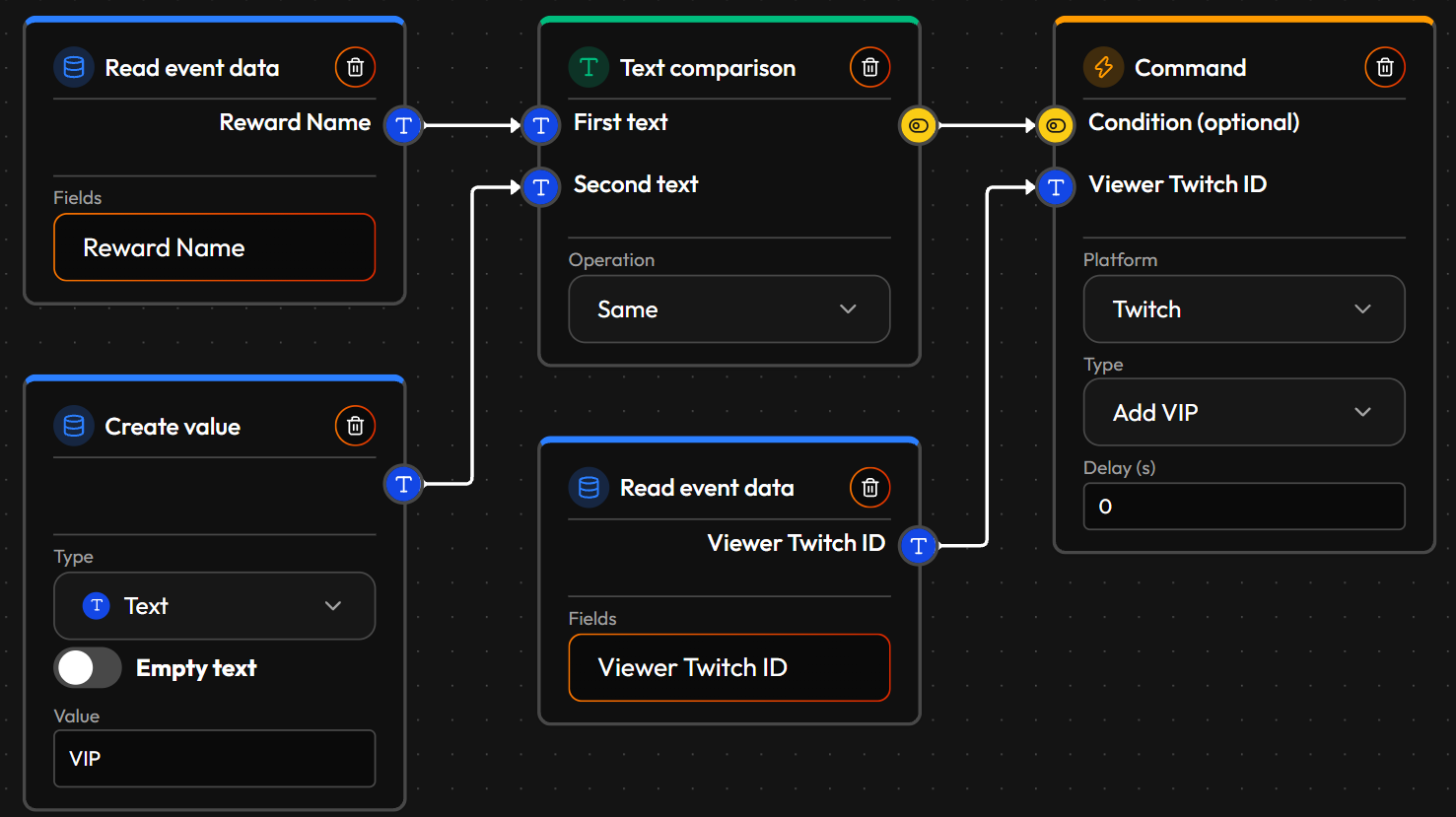
A Read event data node grabs the reward's name from the redemption. A Create value node holds the word "VIP". A Text comparison node checks if they match. That yes/no answer wires into the Command node's Condition (optional) point — so Add VIP only fires when the reward really was "VIP". A second Read event data node grabs the Twitch ID of whoever redeemed it, so the action knows who to add.
That's genuinely all there is to it: an event, a short chain of nodes, and one action at the end. Most Flows follow this same small shape, just with different events, checks, and actions. See Flow ideas for ready-to-build examples, and Events, Nodes, and Commands for the full menu of what you can build with.
¶ Reading the screen
Here is what you see once you are inside a Flow, editing its nodes and connections.
- Top-left — a back arrow (returns to the Automations page), the StreamWizard logo (jumps to the Dashboard), and a hamburger menu icon (opens the full navigation sidebar without leaving the Flow Builder), next to a pill showing which event this particular Flow reacts to (the platform first, then the event's name).

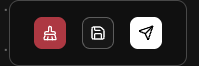
- Toolbar, top-center, has three buttons:
- Clear canvas, shown in red. Wipes the nodes off your workspace so you can start over. It's shown in red as a heads-up that it removes your current layout, so use it deliberately.
- Save. Saves your work as a draft, without changing whether the Flow is switched on.
- Publish. Saves your Flow and takes you back to the Automations page, where StreamWizard checks it and switches it on so it starts reacting to its event. If the Flow needs a permission that isn't in place yet, you are asked to grant it or get a heads-up first: see Permissions and the publish check.
- Node bar, along the bottom of the workspace — seven category icons: Data loaders, Text/Numeric/DateTime/Logical operations, Actions, and Other. Click one to open a small popover listing every node in that category, then drag the node you want onto the canvas. Not sure what one does? Hover over its name in the popover first — a description pops up, before you've even placed it.

- Workspace — the large area where you place nodes and draw connections. Top-right corner:
- / — zoom in and out.
- fit-to-view — centers everything currently on the canvas, with a bit of breathing room around it.
- lock — freezes your existing nodes in place. While locked you can't move or edit anything already there, though you can still drop new nodes down.
- A small minimap sits in the bottom-right corner, showing where you're currently looking relative to the whole canvas — handy once a Flow gets big enough that you're scrolling around in it.
¶ How nodes connect
Every node has small round connection points: inputs on the left (what it needs to work) and an output on the right (what it hands off next). Connecting nodes is what turns a pile of boxes into a Flow.
¶ 🔌 Wiring nodes together
Drag a line from one node's output to another node's input. StreamWizard draws the line for you and keeps it attached as you move things around. A few rules keep every Flow predictable:
- ✅ One output can feed many inputs. Reuse the same information wherever you need it.
- 1️⃣ An input takes only one output. You can't merge two wires into one input.
- 🔁 No loops. A chain of connections can never circle back on itself.
- 🎨 Kinds must match. You can only connect two points that carry the same kind of information (more on that below).
¶ 🎲 Every node runs once
Every node runs exactly once per Flow, no matter how many places its output is wired to. Usually that doesn't matter. But it does for a node like Random:
- Wire one Random node's output to three different places, and all three get the same number, because it was only rolled once.
- Want three different random numbers? Use three separate Random nodes.
¶ ✋ Moving and removing
Nothing is fixed in place.
- Move: drag a node anywhere on the workspace. Its connections follow along.
- Remove a link: click the connection line to delete just that link.
- Remove a node: use the trash icon in the node's top-right corner.
¶ ⌨️ Shortcuts that save time
| Keys | What they do |
|---|---|
| Shift + click or Ctrl + click | Select more than one node, so you can drag, delete or copy them together. Click a selected node again the same way to take it out of the selection. |
| Shift + drag or Ctrl + drag on an empty spot | Draw a box: every node it touches joins the selection. |
| Ctrl + C / Ctrl + V | Copy what's selected and paste a copy onto the canvas. Handy for repeating a small chain of nodes without rebuilding it by hand. |
| Ctrl + S | Save your draft, the same as clicking Save. |
¶ 💡 Hover to learn
You don't have to guess what a node does. Hover over a node's title, or over any input's name, and a description pops up, the same kind you see in the node bar's popover. Do this a lot while you're still learning your way around.
¶ The four kinds of information
Each connection point also shows what kind of information passes through it, using a small letter or icon — like the blue T on text connections, or the orange eye icon for a yes/no answer. You can only connect two points carrying the same kind of information.
Everything that travels between nodes is one of four kinds:
| Kind | What it holds | Its connection point looks like | A few examples |
|---|---|---|---|
| Text | Words and sentences — anything you'd read as-is, rather than calculate with. |  A blue circle with a T in it. A blue circle with a T in it. |
A username, a chat message, a reward's name. |
| Number | A plain number, for counting things or doing math with. |  A green circle with a # in it. A green circle with a # in it. |
Bits cheered, a channel point cost, a delay in seconds. |
| True/False | A yes-or-no answer — almost always the result of a check. |  A yellow circle with a dark eye icon in it. A yellow circle with a dark eye icon in it. |
"Was this reward called VIP?", "Did more than 10 viewers raid?" |
| Date & time | One specific point in time. |  A cyan circle with a little calendar-and-clock icon in it. A cyan circle with a little calendar-and-clock icon in it. |
The moment someone followed, when a subscription started. |
This is strict on purpose. A node built to compare two numbers won't accept text. A node expecting a yes/no answer won't accept a number. This keeps a Flow predictable — you always know what kind of information you're working with. If what you have doesn't match what you need, use a converting node like Number to text or Datetime to text. They take one kind in and hand you a different kind out, so you can keep going.
Every action also has an optional connection point labeled Condition (optional). Leave it unconnected and the action always runs. Wire a yes/no answer into it, and the action only runs when that answer is true. That's how you build conditions — for example, only sending a shoutout if a raid brings more than 10 viewers, or only playing a special alert for cheers over 500 bits.
¶ When something needs fixing
You don't have to guess whether a Flow is actually finished — the Flow Builder tells you. A node with a problem, like a required input that isn't connected to anything or a required field left blank, gets flagged in a few ways at once, so it's easy to spot even in a busy Flow:
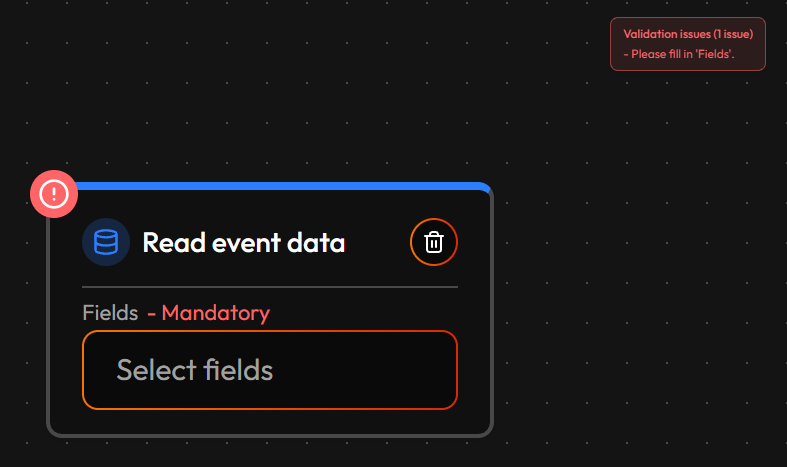
- The specific field or connection point that needs attention gets outlined in red — so you know exactly what's missing, not just which node. A required field that's still empty also says - Mandatory next to its name.
- The node itself gets a small red "!" badge in its top-left corner, visible even when you're zoomed out or the node is off to the side.
- Up in the top-right corner, a Validation issues panel lists every current problem in plain English. It updates live as you fix things, so it's the fastest way to check whether a Flow is actually ready to publish. The example above reads:
Validation issues (1 issue) — "Please fill in 'Fields'."
¶ More ideas
The VIP-redeem Flow above is one shape among a lot of others. A few more, just to show the range — no wiring shown here, see Flow ideas for every one of these worked out node by node:
- Greet new followers by name, automatically, the moment they follow.
- Play a sound alert only for cheers of 500 Bits or more.
- Switch your Twitch category and tags automatically when you switch to a game scene in OBS.
- Post a shoutout in your own chat and a heads-up to your Discord mods when a big raid lands.
- Flip one Constant to pause every command Flow at once, for maintenance, without touching each one.
- Rotate between a few different scheduled chat messages so regulars don't see the exact same line every hour.
¶ Where to go deeper
You've now seen the screen, the connections, and how the builder flags problems. A few references go a level deeper, worth knowing about before you need them:
- Events — every event you can start a Flow from, grouped by platform and then by topic, plus the exact info you can pull from each one. Worth knowing up front: most Twitch events automatically hand you the same two pairs of information — your own channel's ID/name, and the ID/name of whoever triggered it — without you having to ask for them anywhere. The reference only lists what's extra, event by event.
- Nodes — every node you can use, every field, in the same three categories from above. Worth knowing up front: some nodes cover more than one option at once — Numeric comparison is a single node, but you pick equals, greater than, less than, and more from a dropdown once it's on the canvas, with its two inputs named for the kind of value they hold (First number / Second number) rather than for what the comparison does.
- Commands — everything the Command action and the Retrieve node can do or look up, across every connected platform.
- Constants & Macros — reusable values and reusable node bundles, both set up from the Automations page.
- Flow ideas — a big list of ready-to-build examples, from simple to complex.
¶ Good habits
- Start small. Build the event, one check and one action first. Save it, publish it, try it for real, and only then add more branches.
- Read the Validation issues panel. It lists every problem in plain English and updates as you fix things, so it is the fastest way to know a Flow is ready to publish.
- Hover to learn. Hover a node's title or any input's name to see what it does, before you guess.
- Save often. Saving keeps your draft without switching the Flow on. Ctrl+S does it without reaching for the mouse.
- Keep the layout tidy. Place nodes left to right, in the order the information flows, so you can read the Flow like a sentence. Nodes move freely and the connections follow.
- Leave yourself notes. Drop a Comment node near anything tricky, so future you (or a teammate) remembers why it is built that way.
- Reuse instead of rebuilding. Copy a small chain of nodes with Ctrl+C and Ctrl+V, or save it once as a Macro and drop that in wherever you need it.
- Wire one output to many places. An output can feed several inputs. Remember that a node runs only once per Flow, so a Random node gives every place the same number. Use separate Random nodes for separate numbers.
- Save and Load to pass information along. Use a Save value node in one Flow and a matching Load value node in another to share information between automations that don't share one event.
- Lock the canvas when you are done arranging. The lock button in the top-right corner stops you from nudging nodes by accident.
¶ Word list
| Word | What it means |
|---|---|
| Flow Builder | The canvas where you build one Flow. |
| Workspace | The large area of the Flow Builder where you place nodes and draw connections. |
| Node bar | The row of category icons along the bottom of the workspace. Click one to pick a node to drag onto the canvas. |
| Toolbar | The three buttons at the top-center: Clear canvas, Save, and Publish. |
| Node | One step in a Flow: a Data loader, an Operation, or an Action. |
| Connection point | The small round dot on a node. Inputs are on the left, the output is on the right. Its symbol shows what kind of information passes through. |
| Connection | The line joining one node's output to another node's input. |
| Kind of information | Text, Number, True/False or Date & time. Only connection points of the same kind can be connected. |
| Condition (optional) | An input on every action. Leave it empty to always run, or wire in a true/false answer to run only when it is true. |
| Validation issues panel | The red list in the top-right corner that names every problem stopping a Flow from being ready to publish. |
| Minimap | The small overview in the bottom-right corner that shows where you are on a big canvas. |
| Comment | A sticky note node that does nothing but remind you what part of the Flow is for. |
| Macro | A saved bundle of nodes you can drop into any Flow. |
| Publish | The toolbar button that saves the Flow and takes you to the Automations page, where the publish check runs and the Flow is switched on. |