This page introduces Flows — the automations you build in StreamWizard without writing a single line of code, and how you manage them.
Ever wish something on your channel just happened automatically? A shoutout the moment someone raids you. A VIP promotion the moment someone redeems a reward. A welcome message the moment someone follows. That's what a Flow does. You set it up once, and StreamWizard handles it every time after that — in real time, usually within moments of the event itself.
What this page covers. This page is about managing your Flows: how they are organized in Folders, how to create, rename, duplicate, publish and unpublish them, how to find one again, and how StreamWizard checks the permissions a Flow needs when you publish it. It does not cover building a Flow. Wiring events, nodes and actions together happens in the Flow Builder, and has its own page: Flow Builder.
¶ The big idea
Every automation you build is called a Flow, and every Flow is made of three ingredients: one Event, a handful of Nodes, and usually one or more Actions at the end. Nodes and Actions are what you build with, and the Flow Builder page explains them. Here is the one that matters most when you pick or manage a Flow: the event.
Events are how StreamWizard notices things. Stuff happens on your channel constantly — follows, cheers, chat messages, going live. Normally you'd have to be watching to catch it all, and you definitely can't react by hand every time. An event is StreamWizard noticing the moment one of these things happens, and handing your Flow everything it knows: who did it, what they said, how many bits, and so on. Every Flow starts with exactly one event you pick. You don't have to check anything yourself — you just describe what should happen when that event occurs, once, and StreamWizard watches for it, forever, in the background.
Nothing here is locked to one fixed combination. Start from any event — Twitch, Discord, OBS, or a timer you set yourself. End with any action, on that same platform or a different one. Add whatever checks you want in between. A cheer can post a message on Discord. A raid can trigger a Twitch command. An alert can play only for cheers over 500 bits. If you can describe the "when this, then that" in a sentence, there's a good chance you can build it as a Flow.
Today that means Twitch, Discord and OBS, and more platforms are planned. When a new one gets added, you'll just see more events and commands show up in the same lists you already know.
🔔 Event happens → 🧩 Nodes check it → ⚡ Action runs
¶ Folders and Flows
To keep things organized, StreamWizard groups your Flows into Folders. You create and manage Folders from the Automations page — Flows is one of three tabs there, alongside Constants and Macros (more on those on the Constants & Macros page); the page remembers which of the three you were last on, so it won't dump you back on Flows every time you navigate here. Inside each Folder, you can build as many Flows as you like, and you can have as many Folders as you need — a good way to split, say, chat commands from Collectable-related automations.
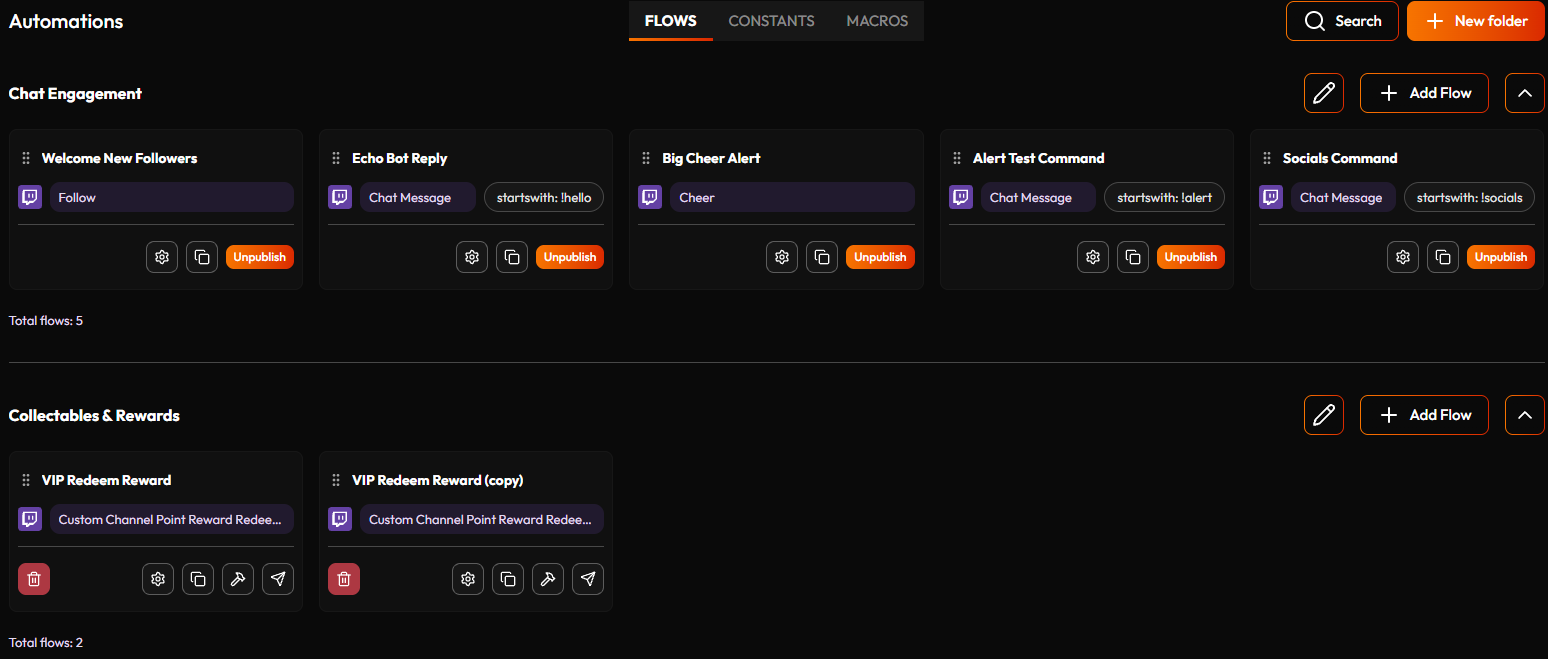
Each Folder can be collapsed with the arrow in its top-right corner, to tuck it out of the way while you work elsewhere on the page, and a Total flows count sits under its cards so you always know exactly how many live there, even once they're paginated. A Folder with more Flows than fit on screen pages them a handful at a time — StreamWizard remembers exactly which page you were on, per Folder, even across switching to a different account and back.
Each Flow reacts to exactly one Event, and is itself made up of the Nodes and Connections you build inside the Flow Builder.
📋 Automations page → 📁 Folder → 🧵 Flow → 🧩 Nodes & Connections
Creating a Flow asks for a few things up front: a name, the Platform it reacts to, and the Event type itself. For some events — Twitch Chat Message and Discord Message Sent — you'll also see Trigger type and Trigger text, so you can filter which messages even wake the Flow up: Same (matches exactly), Contains, or Starts with (handy for a command word like "!hello"). This filtering happens before the Flow itself runs, so a chat-command Flow doesn't have to fire — and be checked — on every single message in your chat.
Each Flow's row in a Folder has a few icons worth knowing — unpublishing a Flow swaps in two more you won't see on a live one:
- Flow settings — rename the Flow or move it to a different Folder. Worth knowing: once a Flow is published, its Platform and Event type lock, and not every field in this panel stays editable — you can still rename it or move it between Folders, but not change what it reacts to. Unpublish the Flow first if you need to change either one: the panel unlocks the moment it's a draft again, and you can republish once you're done.
- Duplicate — clones the whole Flow, canvas and all, as a new draft, still pointed at the same Platform and Event type. The fast way to build several similar Flows — say, half a dozen chat commands that all work roughly the same way — without rebuilding the node chain each time: duplicate one, tweak the copy's trigger text (or a value inside it), and publish it.
- Publish / Unpublish — switches a Flow on or off straight from the list, so you can pause a Flow without opening it. (The Publish button inside the Flow Builder brings you to this same step.) Published, this shows as a single orange Unpublish button; unpublish a Flow and it becomes a small Publish icon alongside the two below.
- Open builder (wrench) — only appears on an unpublished Flow. Jumps straight into the Flow Builder's canvas to edit nodes and connections. A published Flow's canvas isn't reachable from this list at all — unpublish it, or Duplicate it, first.
- Delete — also only appears on an unpublished Flow: a live, published Flow can't be deleted directly, only an unpublished one can.
- Permission icon — a small icon in the top-right corner of a published Flow's card, with a slightly orange outline around the card. A red warning triangle means the StreamWizard bot is missing a permission this Flow needs (on Discord, for example). A blue info icon means the Flow works, but not everywhere. Hover the icon to read what is missing, and see Permissions and the publish check below for how to fix it.
Changing a published Flow's Platform or Event type (after unpublishing it) comes with a catch worth knowing up front: StreamWizard remaps existing Read event data nodes onto the new event's fields by name where it can, but anything without an obvious match gets cleared and needs rewiring. The Flow Builder warns you before you commit to the change:
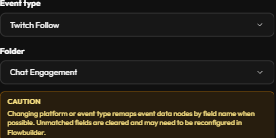
Ordinary trigger tweaks — moving a chat-command Flow from Starts with to Contains, say — don't touch Platform or Event type at all, so they're safe to make on a published Flow without any of this.
¶ Finding a Flow
Once you've got a few Folders going, hunting for one Flow by scrolling gets old fast. Click Search, top-right of the Automations page, to filter every Folder at once by any combination of:
- Name — matches anywhere in the Flow's name, not just the start.
- Platform — Twitch, Discord, OBS Manager, or StreamWizardUI.
- Event type — appears once you've picked a Platform, narrowed to that platform's own events.
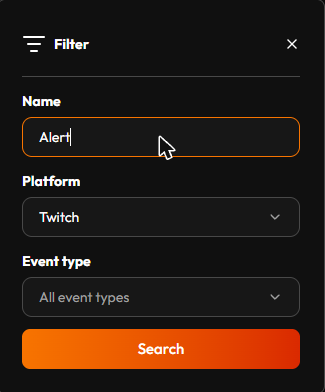
Search checks every Folder at once, not just the one you're looking at — a Folder with no matches just shows empty rather than disappearing, so you always know it's still there. Once a filter's applied, a Clear search button appears in the same panel to instantly drop it and get every Flow back.
¶ Building a Flow
Open a Flow in the Flow Builder with the wrench icon on an unpublished Flow, or by creating a new one. The Flow Builder page walks through the screen, how nodes connect, and how the builder tells you what needs fixing.
Publishing always happens on the Automations page. The Publish button inside the Flow Builder saves your Flow and brings you back here, where the publish check runs.
¶ Permissions and the publish check
First of all, every platform a Flow uses has to be connected on Connect Platforms (see Account): the platform of its event, the platform of every Command and Retrieve in it, and the platform of every Collectable it gives, spends or reads. If one isn't, publishing stops and tells you which one to connect. Disconnecting a platform later unpublishes the Flows whose event, Commands or Retrieves use it.
For a Flow to work, someone has to be allowed to do what it does. Every platform StreamWizard connects to has its own way of deciding who may do what, but in practice it comes down to two kinds of permission:
- Permissions you give StreamWizard. You approve them on the platform's own screen, and from then on StreamWizard may read or do that thing on your account. Twitch works this way: it calls them scopes, and reading your ad schedule or sending chat announcements are two examples.
- Permissions of the StreamWizard bot. On some platforms StreamWizard acts through a bot that is a member of your space on that platform. There is no approval screen: what the bot may do is decided by the roles and settings you set up on the platform. Discord works this way: the bot lives in your server, and its roles and each channel's settings decide what it may do.
A platform can use one kind, both, or neither: OBS Manager has no permissions at all, since whatever you can do in OBS, a Flow can do too. Twitch and Discord are the examples used below.
StreamWizard checks both when you publish, one after the other: first the permissions you give StreamWizard, then the bot's permissions, then the usual Publish flow? confirmation.
¶ Permissions you give StreamWizard (example: Twitch)
A Flow needs this kind of permission in two places. The event that starts it needs one (an Ad Break Begin Flow needs to read your ad schedule), and so does every Command in it, on the account that performs the Command (sending a chat announcement needs the permission to announce, for example).
If one is missing, publishing stops with Additional permissions are required to proceed:
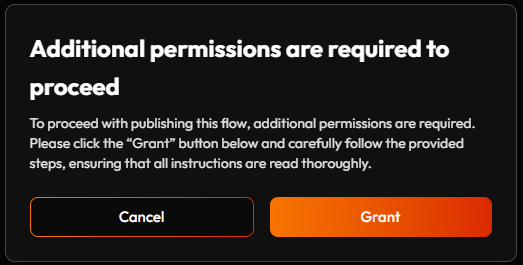
- Grant takes you to Twitch's own permission screen. Read what it asks for, approve it, and you come back to StreamWizard, which carries on with publishing your Flow. If the Flow needs permissions on more than one connected account, you go through them one after the other.
- Cancel closes the dialog and leaves the Flow unpublished.
Only the account owner can grant permissions. If you work on someone else's account as a Delegate, the dialog says you cannot grant them, and the account owner has to do it.
¶ Permissions of the StreamWizard bot (example: Discord)
For these platforms the check is about the bot: StreamWizard looks at whether the bot really has the permissions that Flow needs, so a Flow doesn't quietly sit there doing nothing. The examples here are from Discord.
Two things are checked:
- The event. The platform only tells StreamWizard about something (a message, a new thread, a ban) if the bot is allowed to see it. Message Sent, for example, needs the View Channel permission on your channels. The ban events need View Audit Log on your server. The Flow is fine as long as the bot has the permission on at least one matching channel; channels where it is missing are listed as a heads-up.
- The Command. Each Command in the Flow needs its own permission — Send Messages to send a channel message, Manage Channels to update a channel, Ban Members to ban someone, and so on. The bot needs that permission on the exact server, channel, or thread you picked in the Command's picker.
If everything checks out, publishing continues as usual. If not, a dialog titled Our bot may be missing permissions opens:
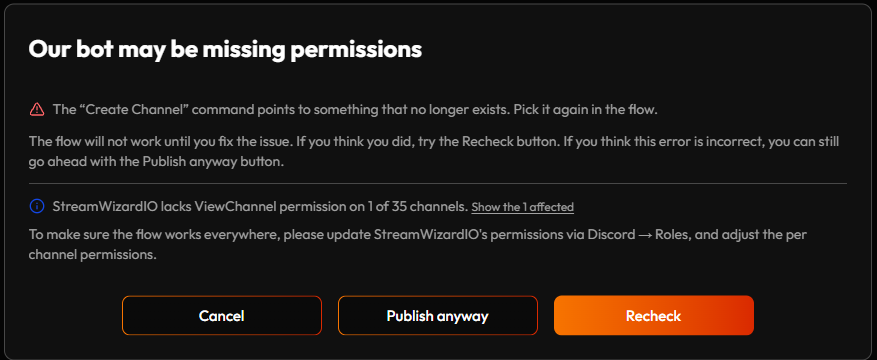
- Red lines (with a red triangle) are things that will not work, for example "The Update Channel command is set to act on #announcements, but StreamWizardIO doesn't have ManageChannels permission there, so it will fail." A red line can also say a Command points to something that no longer exists. Pick it again in the Flow.
- Blue lines (with a blue info icon) are a heads-up: the Flow works, but not everywhere, for example "StreamWizardIO lacks ViewChannel permission on 1 of 35 channels." Click Show the 1 affected (the number depends on how many channels are affected) to see which channels. You can safely ignore these if you don't need the Flow to work in those channels.
- Under the red lines, the dialog says how to fix it: in Discord, go to Server Settings → Roles, give the bot the permission named in the dialog, then come back.
The dialog has three buttons:
- Recheck (the orange one) looks at the bot's permissions again. It shows Checking permissions… for a moment and then either shows the dialog again or moves on to the normal Publish flow? confirmation. Use it right after you change a role or a channel's permissions in Discord.
- Publish anyway publishes the Flow even though the check found a problem. Be aware that a Flow whose permission is really missing will not work: the bot can't do what it isn't allowed to do. Use this button only when you are sure the permission is in place and the check is wrong, which can happen from time to time when StreamWizard couldn't sync the bot's permissions correctly.
- Cancel closes the dialog without publishing.
¶ The permission icon on Flow cards
Publishing is not the only moment StreamWizard looks at the bot's permissions. Every time you open the Automations page, your published Flows that depend on a bot are checked again, because roles and channel permissions can change after you publish. A Flow that has a problem gets a small icon in the top-right corner of its card, and the card gets a slightly orange outline so you spot it in a long list. Hover the icon to read what is wrong.
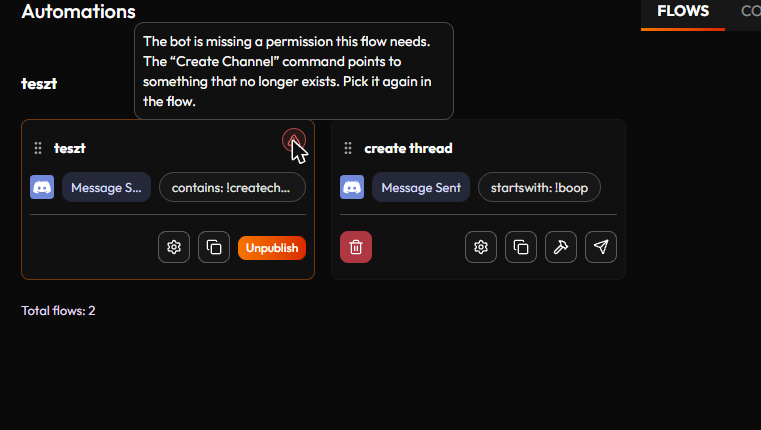
- A red warning triangle means something in the Flow will not work: a Command's target lacks the permission it needs (or no longer exists), or the event can't reach StreamWizard anywhere.
- A blue info icon means the Flow works, but not everywhere, for example the bot can't see one of your channels. The hover text says so.
The hover text is the same explanation you would get in the publish dialog. To fix it, give the bot the permission in Discord (Server Settings → Roles), then come back to the Automations page. The icon goes away by itself once the check passes. Flows that are not published show no icon, since they aren't running. They get the dialog when you publish them. The permissions you give StreamWizard are only checked when you publish.
¶ Good habits
- Give every Flow one job. A Flow that does one thing is easy to test, easy to pause, and easy to understand a month later. Need a variation? Duplicate the Flow and change the copy.
- Name things for future you. Name Folders after what they are for (chat commands, alerts, Collectables) and Flows after what they do, so a search or a glance at the list tells you which one to open.
- Nothing runs until you publish. Saving only keeps your draft. A Flow starts listening for its event when you publish it.
- Try it for real. After publishing, trigger the event yourself and watch what happens, before you rely on the Flow. Start with a harmless action, like a chat message to yourself, and swap in the real one once it works.
- Pause instead of deleting. Unpublish switches a Flow off without losing anything. A live Flow can't be deleted, which also keeps you from removing one by accident.
- Try big changes on a copy. Duplicate a working Flow before you rebuild it. Publish the copy once it works, and unpublish the old one.
- Share values through Constants. A value used by several Flows, like an invite link or a "maintenance mode" switch, belongs in a Constant, so you change it in one place. See Constants & Macros.
- Keep an eye on the permission icon. After you change roles or scopes, glance at your published Flows. A permission icon on a card tells you something stopped working.
¶ Word list
| Word | What it means |
|---|---|
| Automations page | The page where you create and manage your Folders, Constants, and Macros. |
| Folder | A group of related Flows. |
| Flow | One automation "recipe," made of Nodes and Connections, built in the Flow Builder. |
| Event | The thing that starts a Flow — something happening on a connected platform, or a timer. |
| Node | One step in a Flow — a Data loader, an Operation, or an Action. |
| Data loader | A node that brings information into your Flow. |
| Operation | A node that checks or transforms information you already have — text, numbers, dates, or true/false logic. |
| Action | A node that actually does something real, like sending a message or handing out points — usually the last stop in a Flow. |
| Command | One specific thing StreamWizard can ask a connected platform to do or report back — see the Commands page. |
| Connection | The line joining one node's output to another node's input. |
| Constant | A value you set up once, on the Automations page, and reuse in any Flow — see Constants & Macros. |
| Macro | A saved bundle of nodes you can drop into any Flow — see Constants & Macros. |
| Publish | Switching a Flow on so it starts reacting to its event. Happens on the Automations page, after StreamWizard checks the permissions the Flow needs. |
| Scope | A permission you give StreamWizard on a platform by approving it on that platform's own screen, so StreamWizard may read or do something on your account (Twitch works this way). Asked for only when a Flow needs it. |
| Publish check | The check that runs when you publish: first the permissions you give StreamWizard (scopes), then the bot's permissions. See Permissions and the publish check. |