Once you're past your first Flow (see Getting Started if you haven't been there yet), this page covers everything about the account itself: which platforms you've connected, what plan you're on, who else can touch your automations, and where notifications show up.
¶ 🔗 Connect Platforms
A Flow can only react to what StreamWizard can see, and only act where it's allowed to. So the first stop is Connect Platforms in the sidebar. Every platform StreamWizard supports has its own card there (today Twitch, Discord and OBS Manager), and new platforms show up as new cards in the same place. However many there are, each one connects in one of a few ways:

| How a platform connects | What you do | Today, for example |
|---|---|---|
| 🔑 Log in and approve | Click Connect, log in on the platform, approve what StreamWizard may do | Twitch, Discord |
| 🏠 Invite our bot | Invite the StreamWizard bot into your space on the platform | Discord servers |
| 💻 Pair an app on your computer | Click Connect and follow along to link an app on your streaming PC | OBS Studio (OBS Manager) |
Each platform counts once toward your plan, however many accounts you add to it (see Subscription).
¶ 🔑 Log in and approve
Most platforms connect the way you'd expect: Connect, log in, approve. From then on your Flows can act as you. StreamWizard asks for the basics first, and for anything extra only when you publish a Flow that needs it (running ads on Twitch, for example). See the publish check.
¶ 🤖 Who acts in your Flows: the Executor
Every Command in a Flow runs as someone: its Executor. Depending on the platform, you can pick:
- Yourself, the account you connected.
- Your own bot account, a second login just for your Flows, so messages come from "MyChannelBot" instead of you. On Twitch that's the Add bot account button. Log in as the bot in your browser first: whoever is logged in on the approval screen gets linked. A bot handles chat and moderation, while polls, raids, ads or stream settings need you (full list).
- StreamWizardIO - Shared, a bot that's always there.
All of them are included in every plan.
¶ 🏠 Invite our bot
On some platforms StreamWizard works through its own bot that lives in your space, like a Discord server. Connect your own account, then Invite StreamWizard Bot into each space you want to automate. From then on the bot does the work, so there's no Executor to pick.
What the bot may do is up to you, on the platform itself. On Discord it gets its own role: give that role the permissions your Flows need under Server Settings → Roles, or in a channel's Permissions tab. StreamWizard tells you when something's missing as you publish (see the publish check).
- 👑 Only the owner of a space builds Flows for it, on a StreamWizard account with an active plan. Teammates can still help through Shared Access, and admins on the platform can manage the bot's permissions there.
- 🔄 Something missing or out of date? Each space the bot is in shows up on the platform's card (on Discord, under Servers) with a Resync button. StreamWizard keeps the lists in the Flow Builder up to date on its own, but if one ever looks off (a deleted channel still listed, a new one missing), press Resync. It takes a few seconds, and you can resync the same space again after 60 seconds.
- 🚪 Removed the bot? That space disappears from StreamWizard too, until you invite it back.
¶ 💻 Pair an app on your computer
Some of what you want to automate runs on your own streaming computer, like OBS Studio. With OBS Manager connected, your Flows can react to OBS (you switch scenes, the stream or the recording starts) and control it (switch the scene, show a source, set a volume). Your Twitch category can follow your game scene, and your "Be Right Back" scene can start an ad break (see how).
There's no login for an app like this. For OBS, StreamWizard pairs through a small page you add as a Browser Source: click Connect on the card and follow along. All you need is the password from OBS's WebSocket settings, and OBS 30 or newer (Streamlabs Desktop isn't supported).
🔒 The web address you add to OBS contains your OBS password. It's shown only once: keep it to yourself, and if it ever leaks, disconnect straight away. Lost it, or changed the password in OBS? Reconnect gives you a new one.
The card shows Active while StreamWizard can reach the app, and Error when it can't (OBS is closed, or the Browser Source is missing). The little refresh button checks again. These Flows only work while the app is running.
¶ 🔌 Disconnecting
- Disconnect unpublishes the Flows that use that platform. Publish them again once you've reconnected.
- Remove any bot accounts on that platform first.
- For an app on your computer, disconnecting also removes StreamWizard's page from it if the app is open. Otherwise, delete it by hand (in OBS: the Browser Source).
¶ 💳 Subscription
This is where the free trial from Getting Started turns into an ongoing plan. The three tiers scale with how much you're actually running:
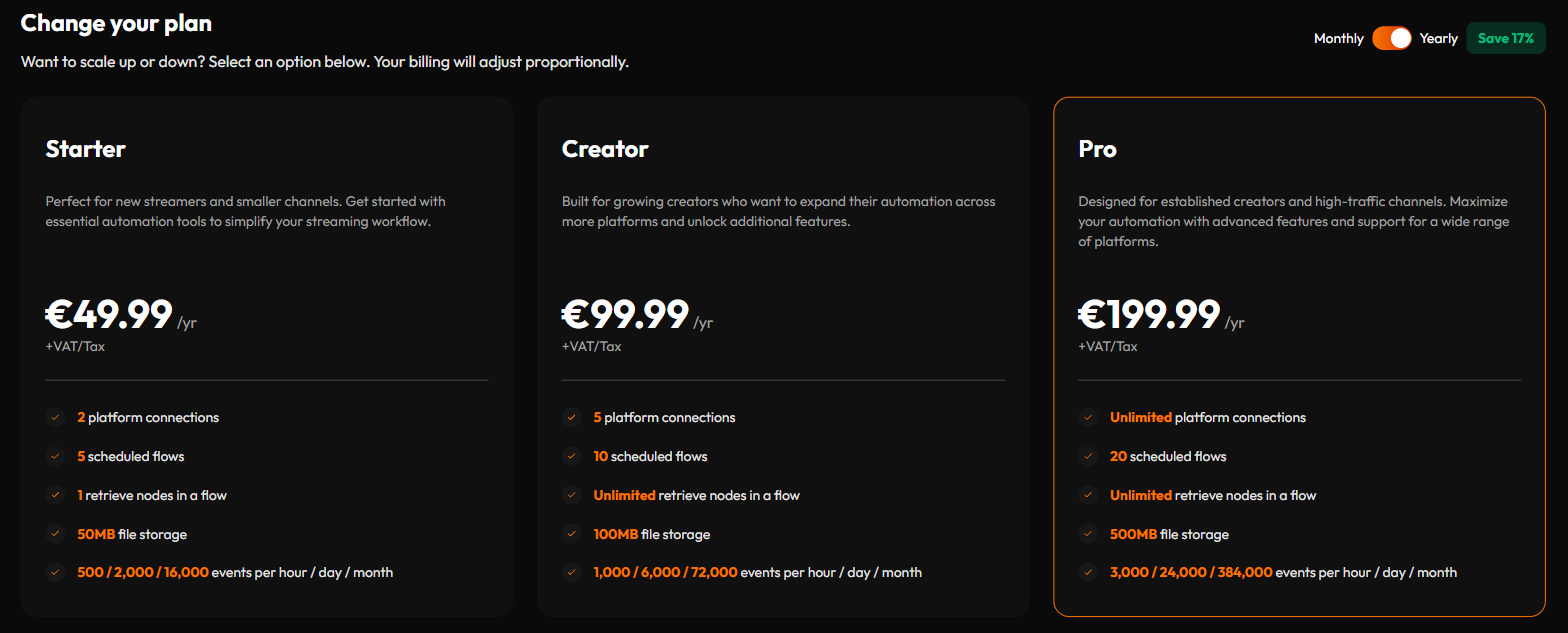
| Plan | Who it's for | Price | Platform connections | Scheduled Flows | Retrieve nodes per Flow | File storage | Rate limit (events per hour / day / month) |
|---|---|---|---|---|---|---|---|
| Starter | New streamers and smaller channels — essential automation to simplify your workflow | €4.99/mo · €49.99/yr | 2 | 5 | 1 | 50MB | 500 / 2,000 / 16,000 |
| Creator | Growing creators expanding across more platforms who want additional features | €9.99/mo · €99.99/yr | 5 | 10 | Unlimited | 100MB | 1,000 / 6,000 / 72,000 |
| Pro | Established creators and high-traffic channels who need advanced features and support | €19.99/mo · €199.99/yr | Unlimited | 20 | Unlimited | 500MB | 3,000 / 24,000 / 384,000 |
All prices are +VAT/Tax — checkout adds whatever rate applies in your country. A Monthly/Yearly toggle switches between them (yearly saves 17%).
New accounts get a 30-day free trial — no card required — and that trial runs on Starter's limits, so you're testing the real product, not a stripped-down demo. You're not locked into Starter for those 30 days either: you can subscribe to Creator or Pro at any point during the trial, immediately, without needing to finish it first. Subscribe to any tier before the trial runs out to keep going without a gap — if it lapses with no active trial or subscription behind it, every one of your Flows gets unpublished (nothing is deleted) and the account can't use StreamWizard's services until you subscribe. Subscribing at that point picks everything back up as it was, so there's nothing to rebuild — just resubscribe before you need it working again.
The one thing that is required: StreamWizard needs an active trial or a paid plan before the rest of the product unlocks for your own account — there's no browsing around without starting one of the two first, even though starting costs nothing. The one exception: a Delegate invited onto someone else's account (see Shared Access below) can act on it under their plan, with no trial or subscription of their own needed.
Rough guide for which tier actually fits:
- 🌱 Starter comfortably covers you up until you hit Twitch Partner status.
- 🚀 Creator is the right range through the growth phase, up to a few hundred concurrent viewers.
- 🏆 Pro is built for established, high-traffic streamers past that point.
None of this is enforced by the product. It's just where people typically outgrow the caps in practice, and platform connections (below) tends to be the actual trigger, not this list.
The caps that tend to matter in practice:
- Platform connections count the platforms you connect: Twitch, Discord and OBS Manager each use one. Bot accounts don't use an extra one: Twitch with two bot accounts is still one connection. Twitch plus Discord alone already fills Starter's 2, and that's usually what makes people upgrade, more than Flow count or file storage.
- Retrieve nodes per Flow limits how many Retrieve lookup nodes a single Flow can use. On Starter that's one per Flow, not one across your whole account, so most single-purpose Flows fit comfortably. A Retrieve that reads several values at once still counts as one.
Every plan also shares the same ceilings, which are rarely reached: up to 100 published Flows, 100 nodes in a single Flow, 50 custom Collectables, 50 alert groups, 50 alert sources, 50 text highlights, and 20 MB per uploaded file.
¶ ⏱️ The rate limit: your event allowance
Every plan comes with an allowance of events StreamWizard will process for your account: a maximum per hour, per day and per month (the last column of the table above). Think of it as a fuel tank with three gauges.
- 🎯 What counts: an event that one of your published Flows is actually waiting for. Each one uses up one point. For chat messages that means only the ones that fit a Flow's trigger, both the event type and its text (for example "starts with !title"). Every other message is filtered out before it is counted, so ordinary chatter costs you nothing.
- 🚧 When it runs out: once any of the three allowances is used up, further events are simply ignored, so no Flow runs for them, until that allowance renews.
- 🔄 When it renews: the hourly and daily allowances refill as time passes. The monthly one follows your billing period, every month, also on a yearly plan.
- 🧹 What doesn't count: behind-the-scenes housekeeping events.
- 👀 What to watch: a Flow that reacts to something very common, like every follower, cheer or raid on a huge channel, on a small plan. If you ever need more room, a bigger plan raises all three numbers.
- 🎁 On the trial: the free trial runs on Starter's limits.
¶ 💡 Why these numbers?
The allowances are sized around a typical streaming routine at each tier, so a normal month fits comfortably:
| Plan | Hourly allowance | A typical stream | Streams per month |
|---|---|---|---|
| 🌱 Starter | 500 | about 4 hours | 8 |
| 🚀 Creator | 1,000 | about 6 hours | 12 |
| 🏆 Pro | 3,000 | about 8 hours | 16 |
Bigger channels are simply busier every hour, so the hourly allowance grows with the tier (500, then 1,000, then 3,000). The daily allowance covers a full stream at that pace, and the monthly one covers a full month of streams. These are planning guides for the numbers, not rules about how long or how often you may stream.
¶ 🤝 Affiliate invite link
This page also has your Affiliate Invite Link — a general invite link for anyone you want to bring onto StreamWizard. A natural moment to use it: right after you've built something you're proud to show off — a friend who sees a slick alert or a working Collectables economy in your chat is a lot more likely to actually try it than one who just hears about it secondhand.
¶ 👥 Shared Access
If you run your channel solo, you'll probably never need this page. If someone else helps you build or maintain automations — a co-mod, an editor, a friend who's better at the Flow Builder than you are — this is how they get in without you handing over your password. It costs them nothing, either: a Delegate you invite doesn't need their own plan, and doesn't even need to start a free trial, to help manage your account.
- Invite user generates a link, after picking a Role: Analyst (can look, can't touch) or Moderator (can build/edit). The link expires in 24 hours, and there's only ever one active link per role at a time — generate a new one if it expires unused.
- Delegates on this account lists who's accepted so far.
- Accounts you have access to is the reverse view — accounts you've been invited into, with a switcher and a way to leave one you no longer need.
¶ 🔀 Switching accounts
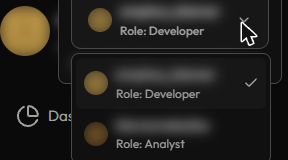
Once you're a Delegate on another account, jumping into it takes one click: your profile picture, top-left of the sidebar, opens a list of every account you can act on — your own, plus each one you've been invited into — pick any of them to switch straight in. Your current role shows right there too, so you always know whether you're looking at your own account or acting as a Delegate. The same switch is available from Accounts you have access to above — each row there has its own switch button, handy when you're already on this page checking who has access to what.
¶ 🔔 Notifications
The bell icon next to your name, at the top of the sidebar, is StreamWizard's own in-app notification feed — separate from anything your Flows send out to Twitch or Discord. Nothing to configure; it's just where the product itself tells you things.
Every notification falls into one of three tiers:
- Info — something happened, nothing to act on. A subscription renewing is a good example.
- Warning — something didn't go through this time, but will likely work later. A Flow trying to start an ad while the ad cooldown is still running is a warning.
- Error — something is broken and needs you. A Flow missing a permission it needs, or two announcements colliding — worth checking right away.
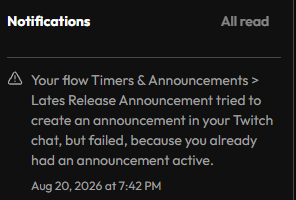
Worth knowing: a notification always names the exact Folder and Flow it came from, so a problem in a busy account with many Flows still points you straight at the one that needs attention — no guessing which automation misfired.
When a Flow can't finish a command in a connected app, the notification tells you which kind of problem it was, so you know where to look. With OBS, for example, it tells apart two cases:
- StreamWizard couldn't reach OBS — OBS was closed, its WebSocket server was off, or the StreamWizard browser source isn't in your current scene collection.
- OBS turned the command down — usually a scene or source the Flow names was renamed or deleted, or OBS was already doing what was asked (like starting a recording that's already running).
Flows that act on a space where our bot lives, like a Discord server, get one more: if the channel or server a Flow points at belongs to someone else's StreamWizard account, or StreamWizard can't match it to any of yours, the Flow stops and the notification says so.
Flows that use Collectables can send one too: when Add collectable or Spend collectable gets an empty User ID, or Add collectable gets an ID nobody on that platform has, that one action is skipped, and the notification names the Flow and the Collectable.
The same notification for the same command doesn't come back while it's still unread, or within a day of the last one, so an evening with OBS closed won't flood your bell.
¶ 🎨 Appearance
There's a Light mode / Dark mode toggle at the bottom of the sidebar on every page — a per-account preference, not tied to anything else on this page. Flip it any time.