Most other alert-box tools only react to donations and subs — and often take a cut of what passes through them. StreamWizard's alerts are just another Action a Flow can trigger, so they can fire on literally anything you can build a Flow from: a cheer, a chat command, a Collectable redemption, a scheduled timer, another platform entirely. Nothing passes through StreamWizard financially, so there's no cut to give up.
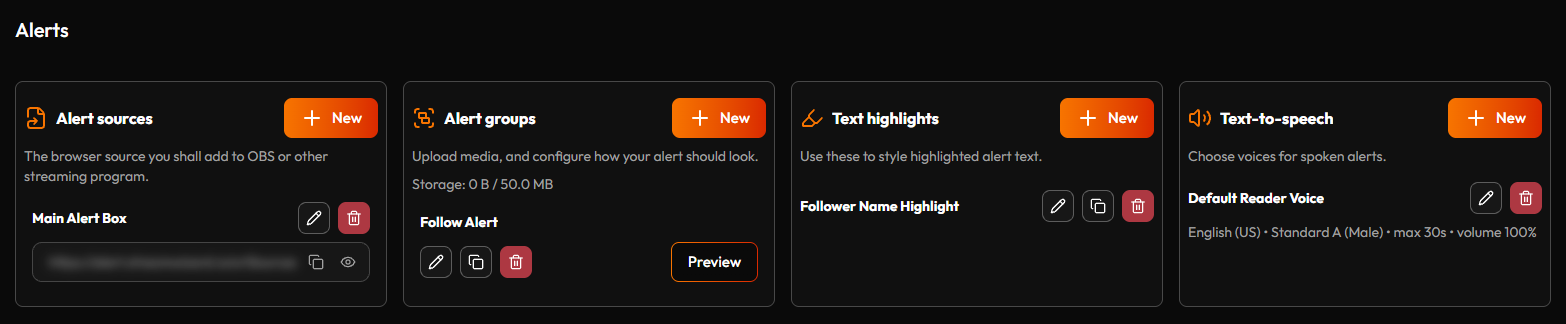
The Alerts page is where you build the pieces a Flow's Play alert action (see Nodes) actually plays — four independent parts, each with its own New X button.
¶ 📺 Alert sources
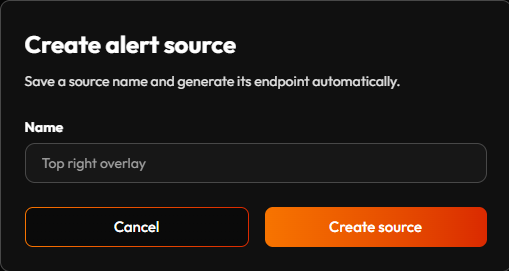
The browser source you add to OBS (or any streaming software) — the actual overlay Flows play alerts on. Click New source, name it, and StreamWizard generates its endpoint automatically. That URL is private and shown masked — it's a read-only view of what's playing, so it can't be used to push anything onto your stream, but it's still worth keeping to yourself: anyone with the link could open it and watch your alerts fire outside OBS, away from your stream.
To actually use it: copy the URL, add a Browser Source in OBS (or your software of choice), paste it in, and size it to match your canvas. Every alert group's alerts play through whichever Source a Flow's Play alert action points at — one Source is enough for most setups, but nothing stops you from making a second one for a different scene.
Worth knowing: how loud an alert plays is controlled in OBS itself, not here. A Browser Source in OBS has its own volume slider (and its own mute button) in OBS's Audio Mixer, right alongside your mic and game/desktop audio — that's where you balance an alert against everything else in your stream's mix, the same way you would any other audio source. Nothing on this page sets an overall volume.
This card also shows your file storage usage — images and sounds you upload count against your plan's cap (see Account).
¶ 🎨 Alert groups
The actual look-and-feel: text styling, animation, and the media it plays. This is where a "someone cheered" event turns into an actual moment on screen — a box that flies in, an image, maybe a sound, some text, then it's gone. Every one of those beats is a setting you control.
Click New group and you'll find three groups of settings — Basic Settings is always visible, while Text and Animation are collapsible sections you open only when you need them:
Basic Settings
- Name — whatever helps you tell this group apart from your others later.
- Visual asset / Audio asset — upload the image/GIF/video and/or sound this group plays, counted against your plan's file storage. Worth knowing: a video you upload as the Visual asset can carry its own audio track. Upload an Audio asset too, and it takes over — the video plays silently and your uploaded Audio asset is what's heard instead.
- Background color — behind the Visual asset, useful if it doesn't fill the frame.
- Text-to-speech — link one of your saved voices (below) so this alert also gets read aloud.
Text (click to expand)
- Font family / size, Text color — basic styling for the alert's text.
- Text position — Left, Right, Top, Bottom, or Center, relative to the Visual asset. A tall portrait image reads better with the text below it (Bottom); a wide banner might want the text centered over it.
- Text delay (seconds) — how long to wait after the box animates in before the text starts its own animation. Even a small delay (0.3–0.5s) makes an alert feel sequenced rather than dumped on screen all at once.
Animation (click to expand)
- Override duration (sec) — how long the whole alert stays on screen before it animates out. Leave it empty and StreamWizard auto-sizes it to whichever is longer: your Visual asset's own length (if it's a video) or your Audio asset's length — long enough for either to actually finish playing, without you timing it by hand. Worth knowing: a single static image with no Audio asset has no natural length at all, so auto duration ends up effectively zero — the alert would flash and vanish before it's readable. Set a number here any time your Visual asset is a plain image, or whenever you want the alert to stay up longer than its media actually runs.
- Animate in / Animate out — how the whole alert box enters and leaves. Four families (Fade, Zoom, Bounce, Slide), each with a plain version plus Up/Down/Left/Right directional variants. A subtle Fade In suits a low-key follow alert; a Bounce In Down or Zoom In feels a lot more like an event for a big raid or a gift-sub bomb. Pick the energy that matches what triggered it.
- Animation duration (ms) / Text animation duration (ms) — how fast each animation plays. Shorter feels snappy; longer feels more cinematic. Worth tuning alongside Override duration above — a slow animate-in eats into how long the alert is actually readable.
- Text animate in / Text animate out — the same idea, but for the text specifically, independent of the box. You can have the box fade in instantly, then have the text slide in a moment later — box first, message second, instead of everything appearing at once.
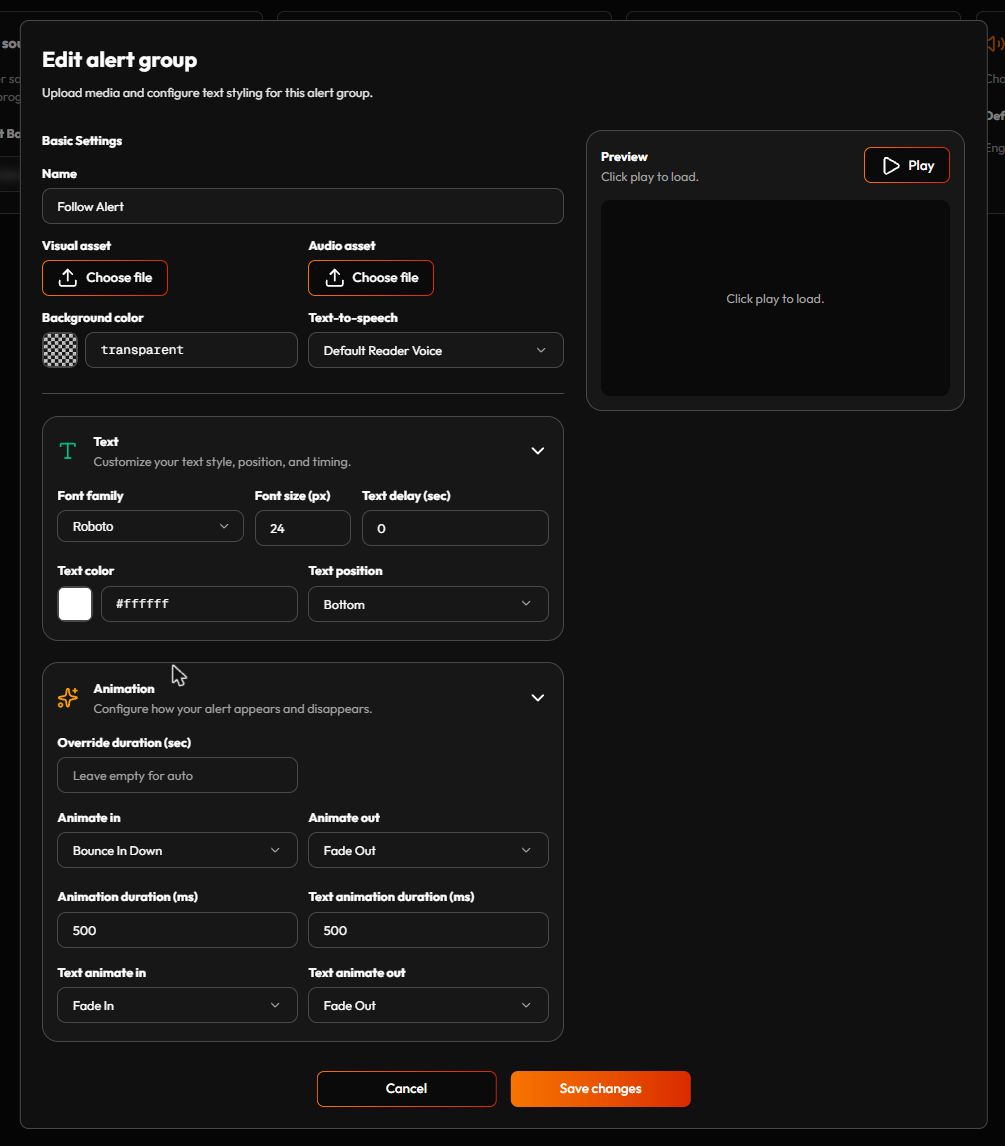
Hit Preview any time to render the group right there in the browser with placeholder text — a fast way to tune animation and timing without ever touching OBS or going live. A Flow's Play alert action references a group by name via its Group field — build a few for different occasions (a small, quiet one for follows; a bigger, bouncier one for raids and gift subs) rather than one alert trying to do everything.
¶ 🖍️ Text highlights
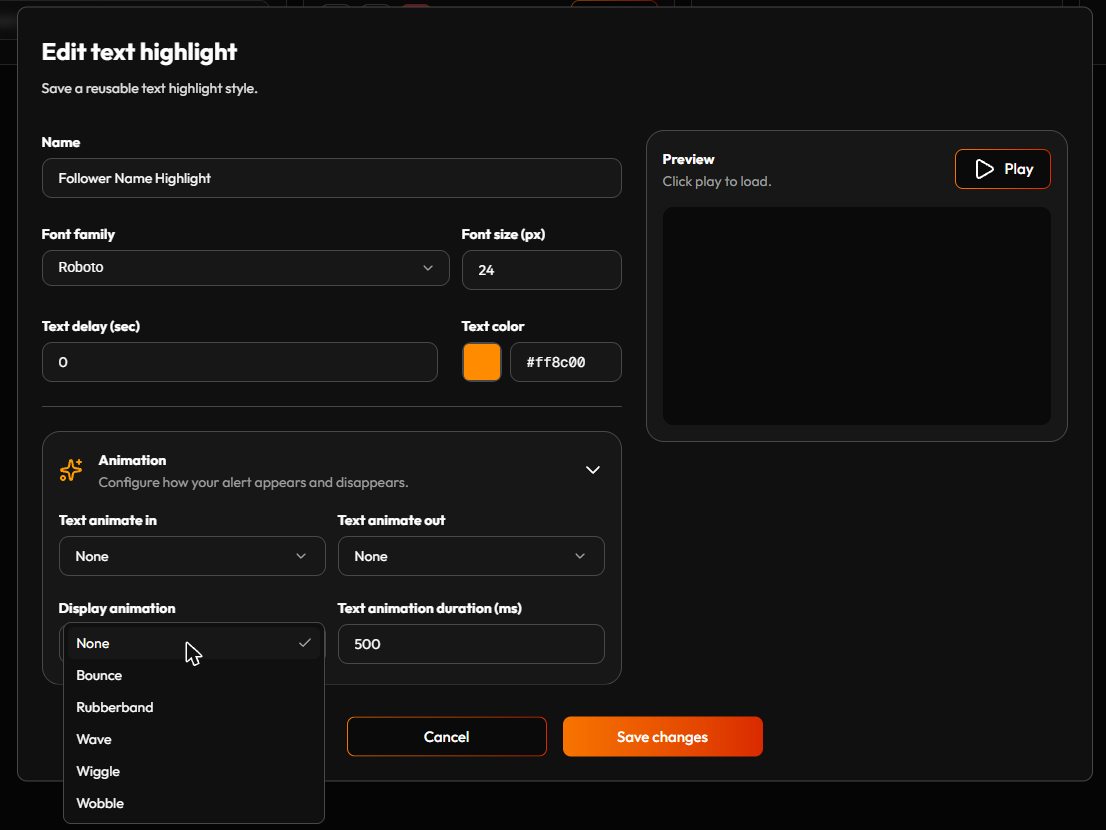
A reusable style for making one piece of text pop inside an alert's message — a donation amount, a username, whatever should catch the eye. It's a smaller version of the same toolkit as alert groups, with one extra trick of its own:
- Font family, Font size — basic styling for the highlighted text.
- Text color — the highlight's own color, independent of the rest of the alert's text.
- Text delay (sec) — how long to wait before the highlighted word starts its own animation, so it can animate in on its own beat, separate from the rest of the alert.
- Text animate in / Text animate out — how the highlighted text itself enters and leaves, same families as an alert group's own animations.
- Display animation — the one thing a plain alert group doesn't have: a looping effect (Bounce, Rubberband, Wave, Wiggle, or Wobble) that keeps playing for as long as the highlight is on screen, not just once when it appears. That's the real difference to understand: Animate in/out fires once; Display animation keeps going the whole time the alert is up. A bits amount wrapped in a Wobble highlight doesn't just slide in and sit still — it keeps subtly moving for as long as it's on screen, which is exactly the kind of detail that makes a number feel like the main event instead of background text.
Use one by wiring the Apply highlight node into a Flow — it takes a piece of plain text and wraps it in this style's formatting, ready to feed into a Play alert action. Worth knowing: that formatting is built specifically for the Alert overlay on screen. Send the same wrapped text to a chat message instead, and none of that carries over — chat can't render it, so what shows up is the raw styling code wrapped around the plain text, not the colorful moving highlight you built here.
Hit Play next to the Preview panel any time to see the style rendered live against sample placeholder text, the same way an alert group's own Preview works — a fast way to judge a Display animation's motion without building a whole alert around it first.
¶ 🗣️ Text-to-speech
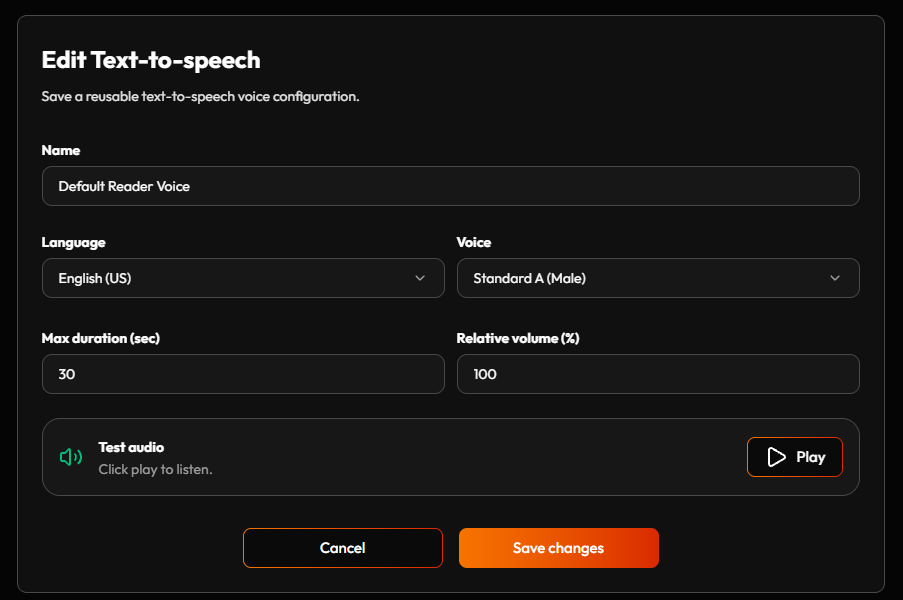
A reusable voice:
- Language — a genuinely long list, dozens of languages, handy if your community isn't all-English.
- Voice — the options vary by language; some have just a couple, others ten or more.
- Max duration (sec) — a hard cap on how long the voice is allowed to read for. Protects you from a redeem where someone pastes in an essay and it reads for two straight minutes.
- Relative volume (%) — not your alert's overall volume (that's OBS's job, see Alert sources above) — this is purely the balance between this voice and the alert's own Audio asset, for whenever a group has both. Worth knowing: the two never actually overlap — the voice only starts once the alert's own sound has finished playing, not over top of it. Relative volume is about matching loudness across that handoff, so the voice doesn't land jarringly louder or quieter than the sound that just played before it.
Hit Play next to Test audio any time to hear the voice read a sample line, so you can judge it before saving rather than finding out live.
Link a voice to an alert group's Text-to-speech field to have that alert read aloud — genuinely popular for cheer/donation alerts where hearing the message lands harder than just reading it.
¶ Putting it together
Alerts are played from a Flow, so this is where they come to life. Two nodes matter here. Both are described in full on the Nodes page, and Flow Builder explains how to place and connect nodes in general.
- Play alert is the action that shows an alert. It picks a Source (which overlay it plays on) and a Group (which look, sound and voice). Its optional Text content is the on-screen text and its optional TTS content is what the voice reads out. Leave one empty and it is simply skipped.
- Apply highlight wraps a piece of text in one of your saved Highlight styles, so it stands out on screen. The result is styled text meant for the alert's on-screen text, so wire it into Text content (chat doesn't display it).
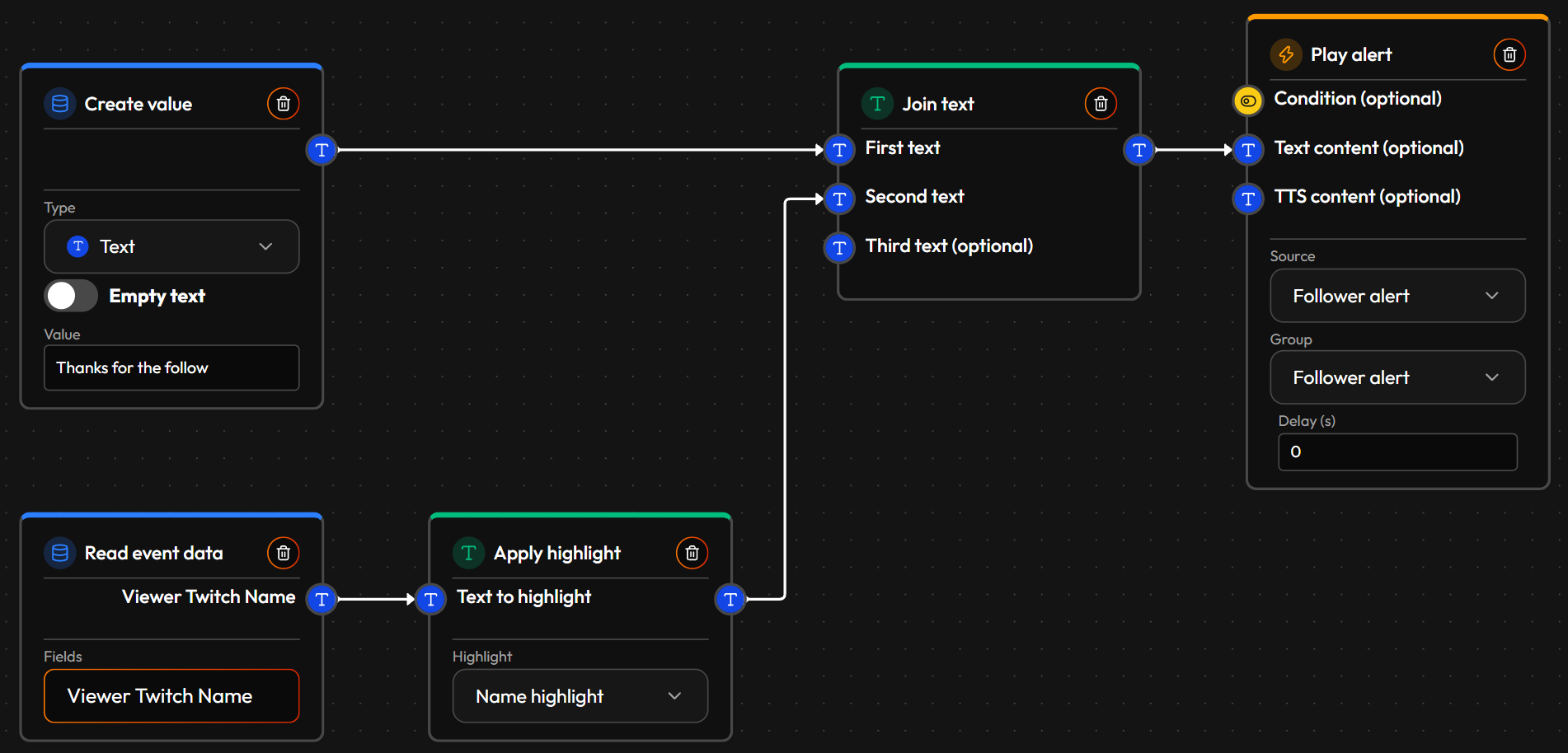
Here is how that Flow is built, from the left:
- Create value (type Text) holds the fixed part of the message:
Thanks for the follow. Note the space at the end. It is part of the text, so the name that comes next isn't glued to the last word. - Read event data grabs the name of the person who triggered the event.
- Apply highlight wraps that name in the Name highlight style, so it stands out on screen.
- Join text puts the two pieces together: the fixed text first, the highlighted name second.
- Play alert takes the joined text as its Text content, and its Source and Group choose where and how the alert plays.
Because every step is its own node, the text can be built as richly as you like: a number run through Number to text, several pieces glued together with Join text, each part in its own highlight.
¶ A few ways people actually use this
Because a Play alert is just another Action, it isn't boxed in to the handful of moments a dedicated alert-box tool reacts to:
- A raid alert with a real shoutout baked in. A Read event data node pulls the raider's name and viewer count, Number to text and Join text build a sentence out of them, and the alert reads it aloud via Text-to-speech at the same moment it shows on screen — no separate shoutout bot required.
- A milestone alert a donation tool has no way to know about. Wire a Numeric comparison off a Collectable's running total, and only fire the alert once a threshold is crossed — "100th follower this month" or "first sub of the stream" isn't a single event Twitch sends you, but it's an easy Flow.
- A Discord moment showing up on your Twitch overlay. A Flow's event and its actions don't have to share a platform — a Discord reaction or announcement can trigger the exact same on-screen alert box as a Twitch cheer, useful if a chunk of your community lives in Discord rather than Twitch chat.
- One event, several reactions at once. A gift-sub bomb can trigger a Flow that plays a big, bouncy alert and pings your mods on Discord and hands out a Collectable bonus — three different responses to the one trigger, from a single Flow.
¶ Good habits
Match the animation's energy to what triggered it. A subtle Fade In suits a low-key follow alert; a Bounce In Down or Zoom In feels a lot more like an event for a big raid or a gift-sub bomb. Worth making a habit of, not just a one-off choice.
Set a Max duration on every Text-to-speech voice. It's the difference between reading out a cheer message and reading out an essay someone pasted into a redeem, for two straight minutes.
Keep your Alert source URL to yourself. It's read-only and can't be used to push anything onto your stream, but anyone who has it can still open it and watch your alerts fire, away from your actual broadcast.
Build a few small groups instead of one that tries to do everything. A quiet one for follows, a bigger one for raids and gift subs — swapping which Group a Flow points at is easier than reworking one alert's settings every time the occasion changes.