Alerts pop up and vanish. Overlays stay on screen and change while you stream: a countdown before you go live, a goal bar that fills with every sub, a queue of viewers waiting to play with you, or a raffle wheel your chat can join. Your Flows move them, and when something happens on an overlay (the wheel stops, the goal is reached), that can set off your Flows too.
¶ 🧰 Seven kinds of overlay
| Overlay | What it does | For example |
|---|---|---|
| Text card | One card with a title and an optional subtitle. It can hide by itself after a while, or stay and only change its text. | "Latest follower: …" |
| Counter / Goal | A number your Flows raise, lower or set. Give it a target and it becomes a goal with a progress bar and milestones. | A death counter, a sub goal |
| Countdown | Counts down for a set time or to a date and time. Flows can add time, with an optional cap. | Starting soon, BRB, a subathon timer |
| Stopwatch | Counts up, optionally until a cap. Flows can add or remove time. | A speedrun or challenge timer |
| List | Text items in any order that your Flows add, remove, move and tick off. | Stream goals, a to-do list |
| Queue | First in, first out, with a current item. Pick Next moves the queue on. | Viewers waiting to play with you, song requests |
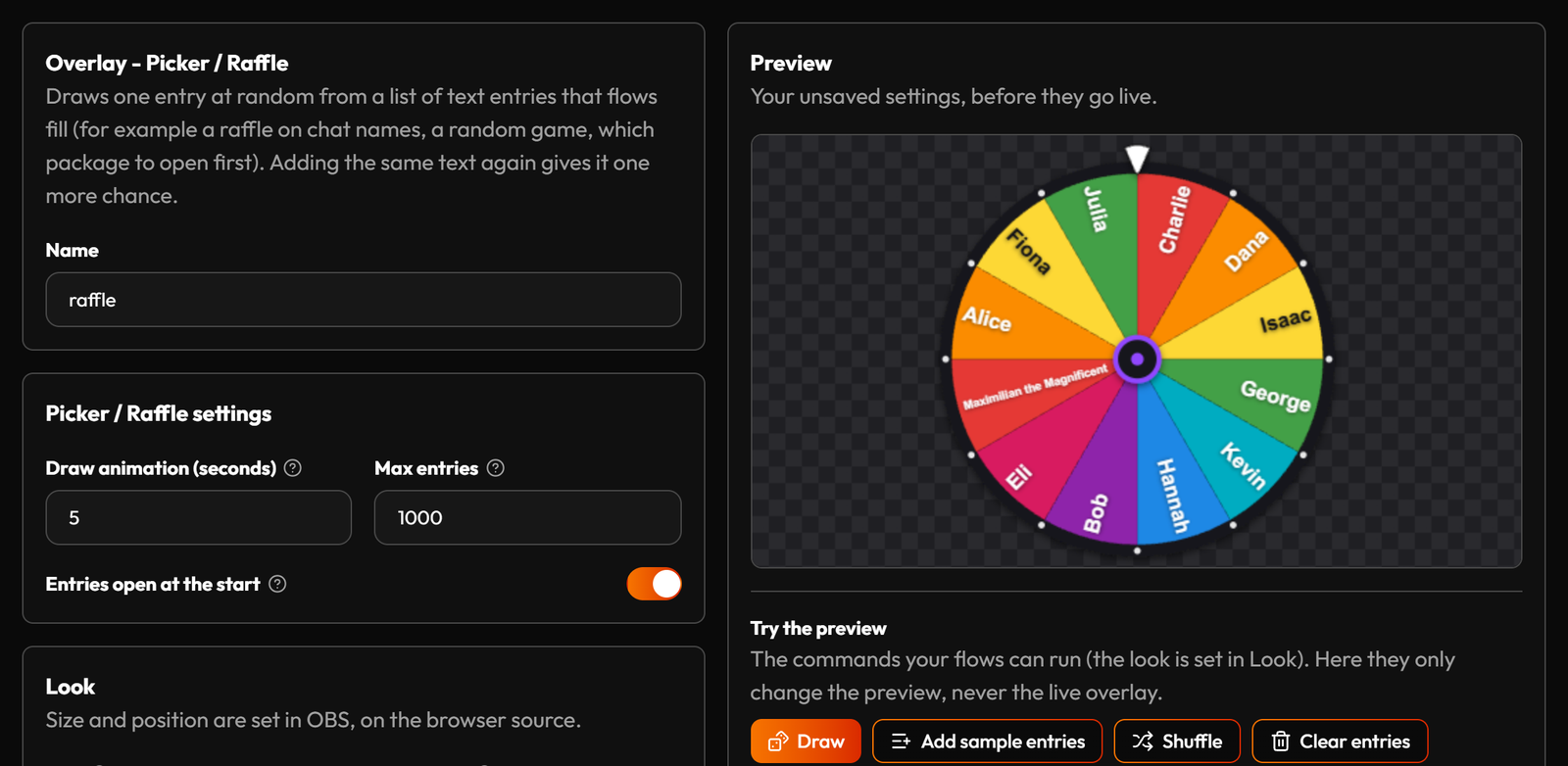
| Picker / Raffle | Draws one entry at random. Adding the same text again gives it one more chance. | A giveaway, a random game, which package to open first |
¶ 🎨 Pick a look
Every kind comes with several looks, plus colors, an animation and, where it fits, where the text sits:
- 📝 Text card: Panel, Plain text
- 🔢 Counter / Goal: Number + label, Progress bar (also vertical), Ring, Jar, Thermometer, Flip counter
- ⏳ Countdown: Digital, Flip clock, Ring, Progress bar, Minimal text, Segmented boxes
- ⏱️ Stopwatch: Digital, Flip clock, Minimal text, Segmented boxes
- 📋 List: Vertical list, Card stack, Scrolling ticker, Table, Checklist
- 🚶 Queue: Vertical list, Card stack, Now + next, Table
- 🎡 Picker / Raffle: Wheel, Name scroller, Slot machine, Card shuffle, Mystery boxes, Highlight grid, each in four color palettes (Accent shades, Vivid rainbow, Pastel, Game show)
Try a few in the preview; switching looks keeps your other settings.
¶ 🚀 Your first overlay
- Open Alerts & Overlays and switch to the Overlays tab.
- Click Create overlay, pick a kind and give it a name.
- Set it up. The Preview on the right shows your unsaved settings before they go live, and Try the preview lets you press its buttons (draw the wheel, add time, …) without touching the real overlay.
- Save. The overlay updates in OBS right away.
¶ 🏁 Milestones
Counters, countdowns and stopwatches can have milestones: points along the way that fire a Milestone Reached event when they're reached. A sub goal can cheer at halfway, a subathon timer can warn chat when one minute is left, and a speedrun timer can call out every 10 minutes.
What a milestone can be:
- 🔢 Counter / Goal: a value (like 50), or, once the counter has a target, a percentage of the target. Only going up past a milestone fires it; going down never does.
- ⏳ Countdown: a time left (like 1:00), or a percentage of the current total, which is the start time plus any time added since.
- ⏱️ Stopwatch: a time elapsed (like 10:00).
Timers only fire milestones while they run. On a countdown, a command that jumps the time (like Set Time Left) skips the milestones it jumps over; only time passing fires them.
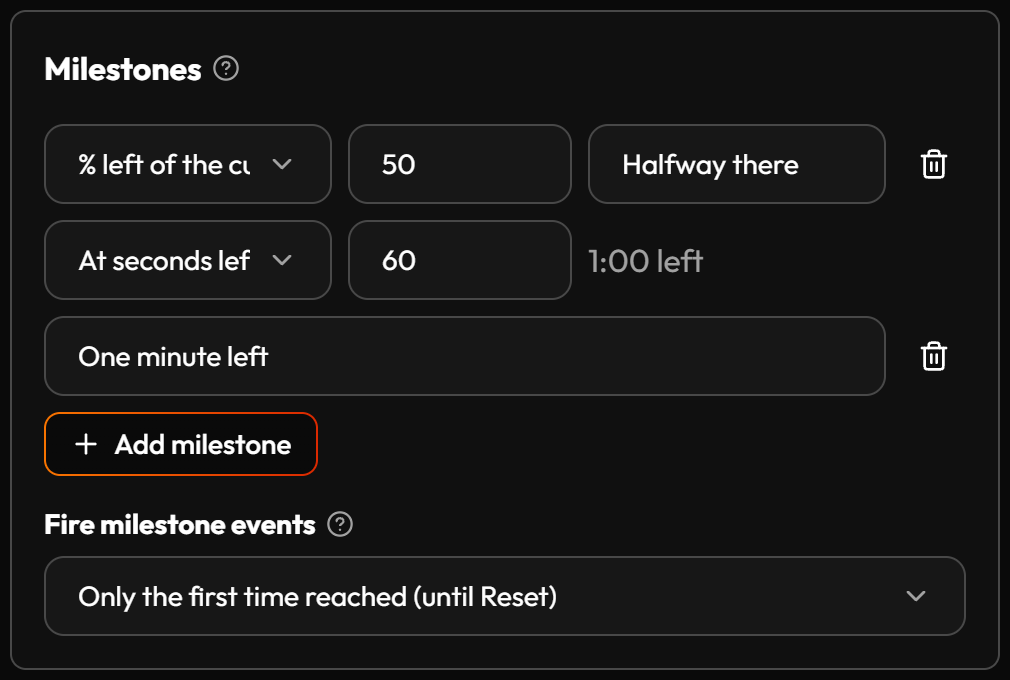
To add some, open the overlay's editor and go to Milestones:
- Click Add milestone.
- Pick its kind, enter the value and give it a label, like Halfway there. The label travels with the event, so your Flow knows which milestone it was.
- Under Fire milestone events, pick Only the first time reached (until Reset) or Every time reached (for example again after going back below it).
- Save.
In a Flow, start from [Countdown] Milestone Reached (or the Counter or Stopwatch one) and compare the Milestone Label to do something different at each milestone.
¶ 📺 Put it in OBS
Every overlay has a Link for OBS (browser source). Add a Browser source in OBS, paste the link, and use the size StreamWizard suggests under the link. The overlay always fills the source, so you can resize and move it freely.
You can open the same link in a normal browser too, for example on a second screen. Every open copy shows exactly the same thing at the same moment, and the overlay keeps running even when no copy is open.
Each overlay can be open in up to 10 places at once, and every OBS source, browser tab and open control panel counts as one. An 11th copy stays empty until another one closes. So don't duplicate the browser source more than you need: a browser source keeps its place even in a scene you aren't showing, unless you turn on Shutdown source when not visible in its OBS properties.
🔒 Keep the link to yourself. It's view-only, so nobody can change your overlay with it, but anyone watching it takes up your places. If it leaks, click New link: the old one stops working and you paste the new one into OBS.
¶ 🕹️ Drive your overlays
There are three ways to move an overlay, and you can use all of them on the same overlay at once: your Flows react to what happens on stream, dashboard buttons are one click away while you play, and the control panel has every button the overlay offers. Whichever you use, every open copy updates at the same moment, and the overlay's events start your Flows just the same.
¶ ⚡ With your Flows
Overlays show up in the Flow Builder as their own platform, Overlays, and work in both directions.
Your Flows change the overlay with commands, picking which overlay in the command's first field: [Counter] Increase, [Countdown] Add Time, [Picker / Raffle] Add Entry, [Text Card] Set Text and many more. Retrieve commands like [Queue] Get Queue Status read where an overlay stands right now.
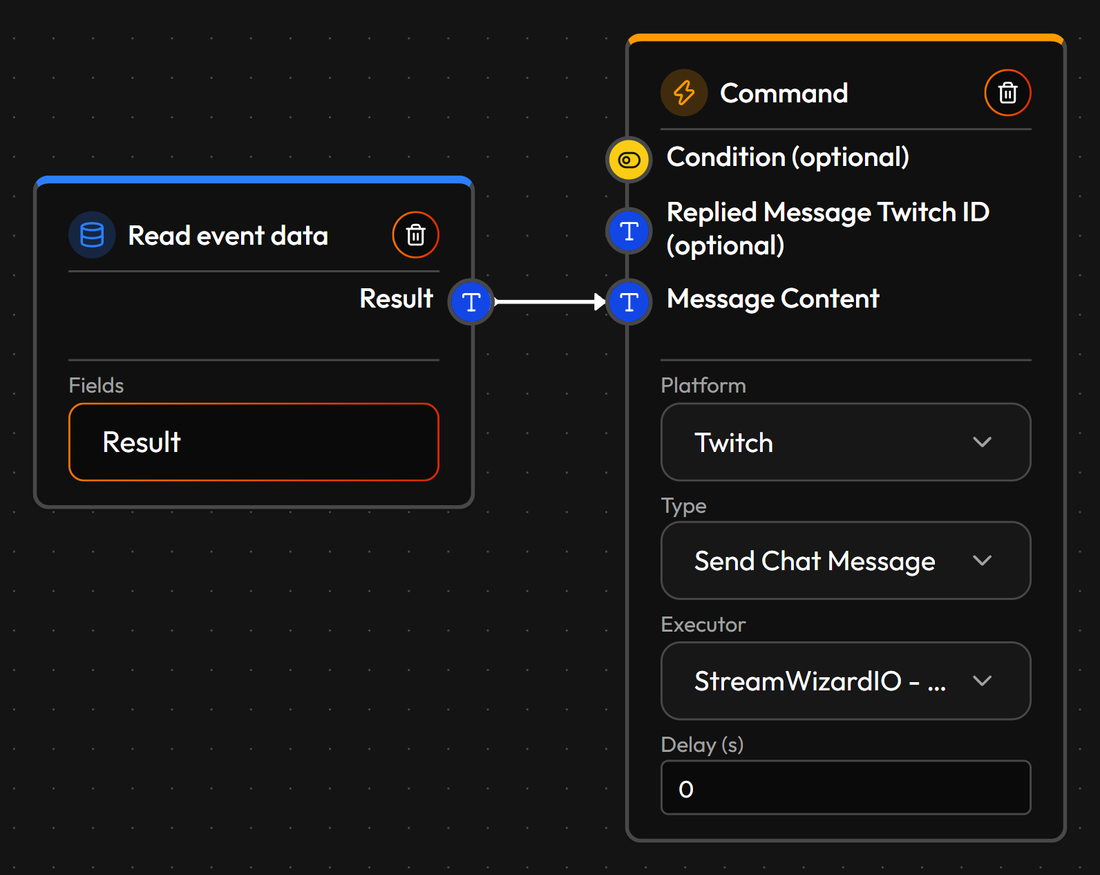
The overlay starts your Flows with its own events: [Counter] Goal Reached, [Countdown] Timer Ended, [Queue] Item Picked, [Picker / Raffle] Draw Revealed and more. Each event brings its details along: Draw Revealed has the Result (the winner) and how many entries there were, Goal Reached has the Value and the Target.
Put the two together and you get a whole giveaway, start to finish:
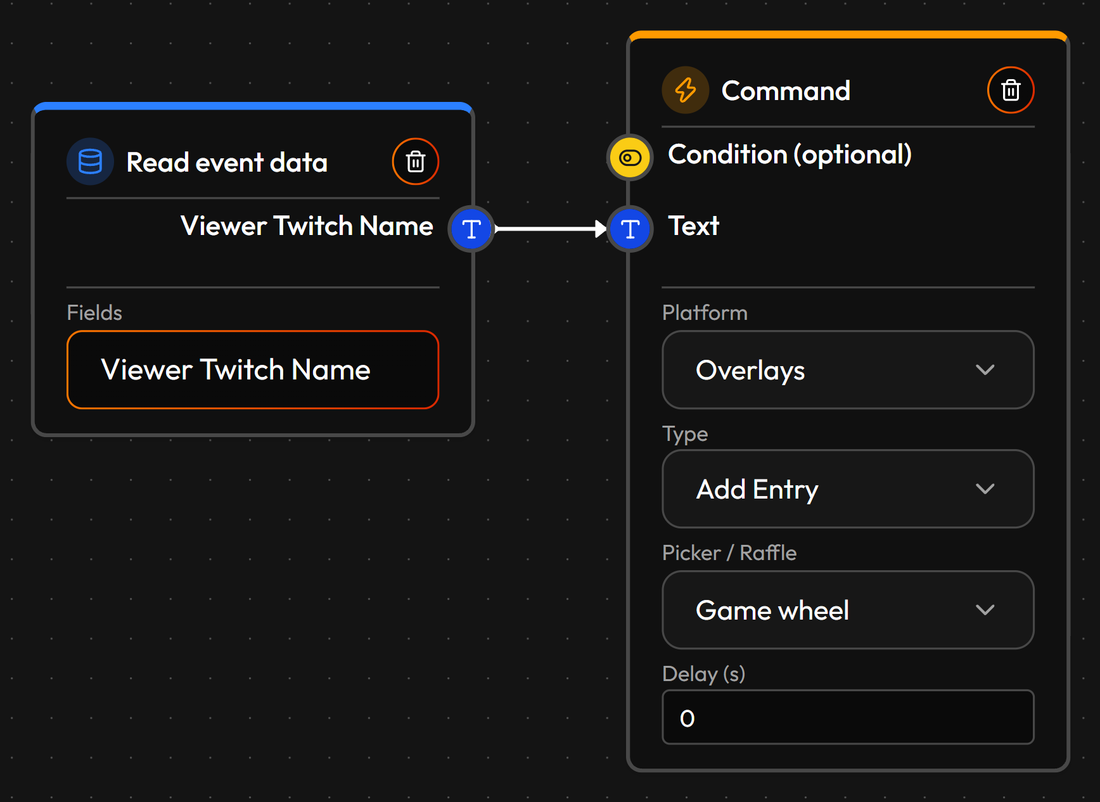
- A chat message starting with
!join→ [Picker / Raffle] Add Entry with the viewer's name. The wheel fills up live. - You press Draw (or a Flow does) and the wheel spins.
- [Picker / Raffle] Draw Revealed → a chat message with the Result, and a Discord role for the winner.
Joining: chat !join → Add Entry |
Announcing: Draw Revealed → chat |
|---|---|
 |
 |
A few more ideas:
- 🎉 A subathon: every cheer or sub → [Countdown] Add Time; [Countdown] Timer Ended → thank chat and start the after-party.
- 🎯 A sub goal: every sub → [Counter] Increase; [Counter] Goal Reached → play your big alert.
- 🎮 Play with viewers:
!queue→ [Queue] Add Item;!nextfrom a mod → [Queue] Pick Next; [Queue] Item Picked → tell chat who's up. - 🙋 Where am I?
!position→ [Queue] Get First Position Of Item with the viewer's name → reply "You're number 3 in the queue."
Every overlay event also carries the Overlay ID (shown under the OBS link, with a copy button). Compare it in a Flow when you want to react to one overlay only.
Flows can also restyle an overlay for a moment without touching its saved settings: Set Colors, plus a few per kind like Set Palette for the raffle or Set Label for a counter. Reset Look goes back to the saved look, and so does saving the overlay in the editor.
¶ 📊 From your dashboard
Put the buttons you need most on your Dashboard, right next to your stats: draw the raffle, move the queue on, add a death, add time.

- Click Edit Layout and drag an Action button tile onto the dashboard.
- Give it a Button label and set On click to Overlay command.
- Pick the Overlay and the Command.
- If the command takes a value (like the seconds for Add Time), set it right there, or turn on Ask when clicked to type it in a small window on every click.
- Pick a background color and click Done.
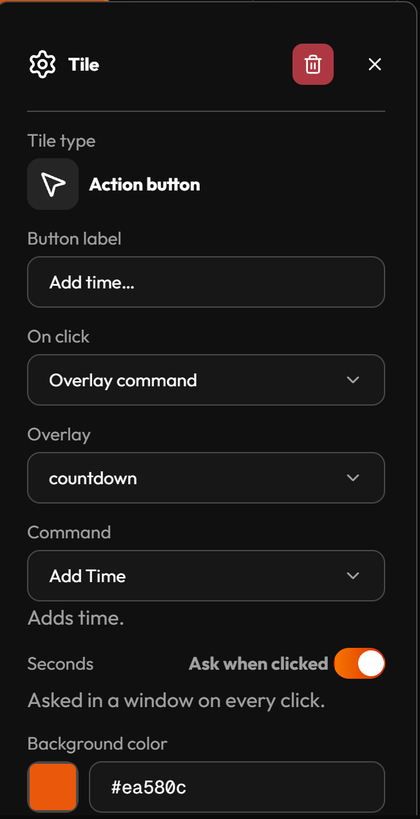
A dashboard button runs its command right away, without asking first, so think twice before putting Reset on one.
¶ 🎛️ In the control panel
Open control panel in the overlay's editor shows the live overlay, exactly as OBS shows it, next to every button it has. For a queue that's adding people, Pick next, moving someone up, opening or closing entries (it shows whether they're Currently open), and changing the colors.
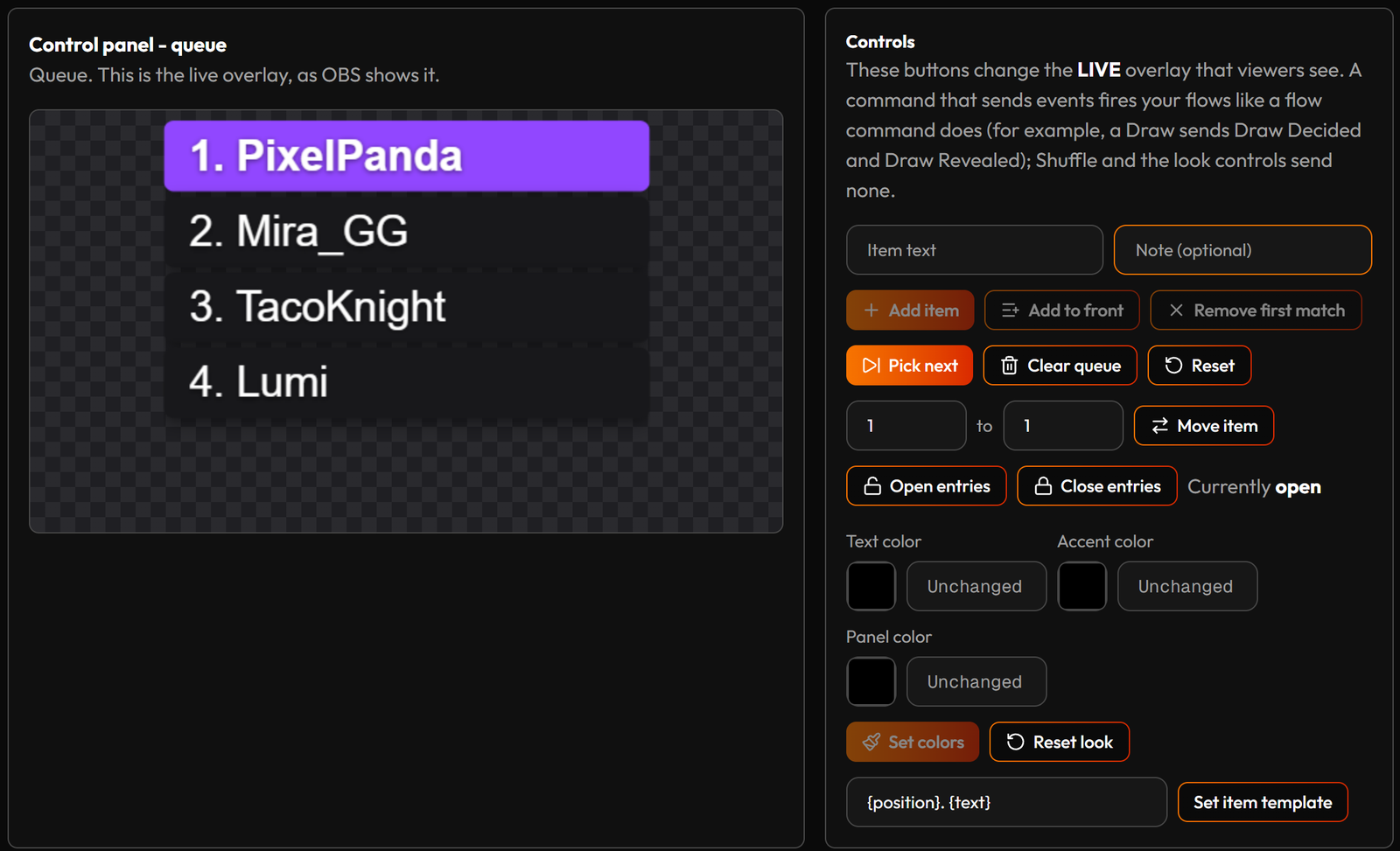
These buttons change what your viewers see right away, and they set off your Flows just like a Flow command would. Buttons that wipe the overlay or remove many items at once (Reset, clearing the list or the entries) ask before they run. While the control panel is open, its live view counts as one of the overlay's 10 places.
¶ 👥 With your mods
Helpers you invited through Shared Access can work with your overlays too. What they can do depends on their role:
| Role | See overlays, settings and the OBS link | Create overlays | Change settings, New link | Control panel and dashboard buttons | Delete overlays |
|---|---|---|---|---|---|
| Full access | ✅ | ✅ | ✅ | ✅ | ✅ |
| Supermod | ✅ | ✅ | ✅ | ✅ | ✅ |
| Moderator | ✅ | ✅ | ✅ | ❌ | ❌ |
| Analyst | ✅ | ❌ | ❌ | ❌ | ❌ |
So a Supermod can run the giveaway from the control panel while you play, and a Moderator can set up and tweak your overlays. Every role that can see an overlay can also see its OBS link, so pick your helpers with that in mind.
In Flows, the overlay Commands that delete data or reset an overlay (Reset, the Clear and Remove ones) count as risky, like any other risky Command: a Moderator can build a Flow with them but can't publish it. See the full list on Commands and the roles on Account.
¶ 🗑️ Deleting an overlay
Delete it from its card in the Overlays list. Published Flows that send commands to it or read from it are listed and unpublished, so nothing keeps talking to an overlay that's gone. Flows that only listen to its events stay published.
¶ 📌 Good to know
- 📏 Your plan sets how many overlays you can have; see Account.
- 💾 Overlays keep their content (entries, values, time) while StreamWizard runs, but we can't guarantee it against data loss over longer periods.